


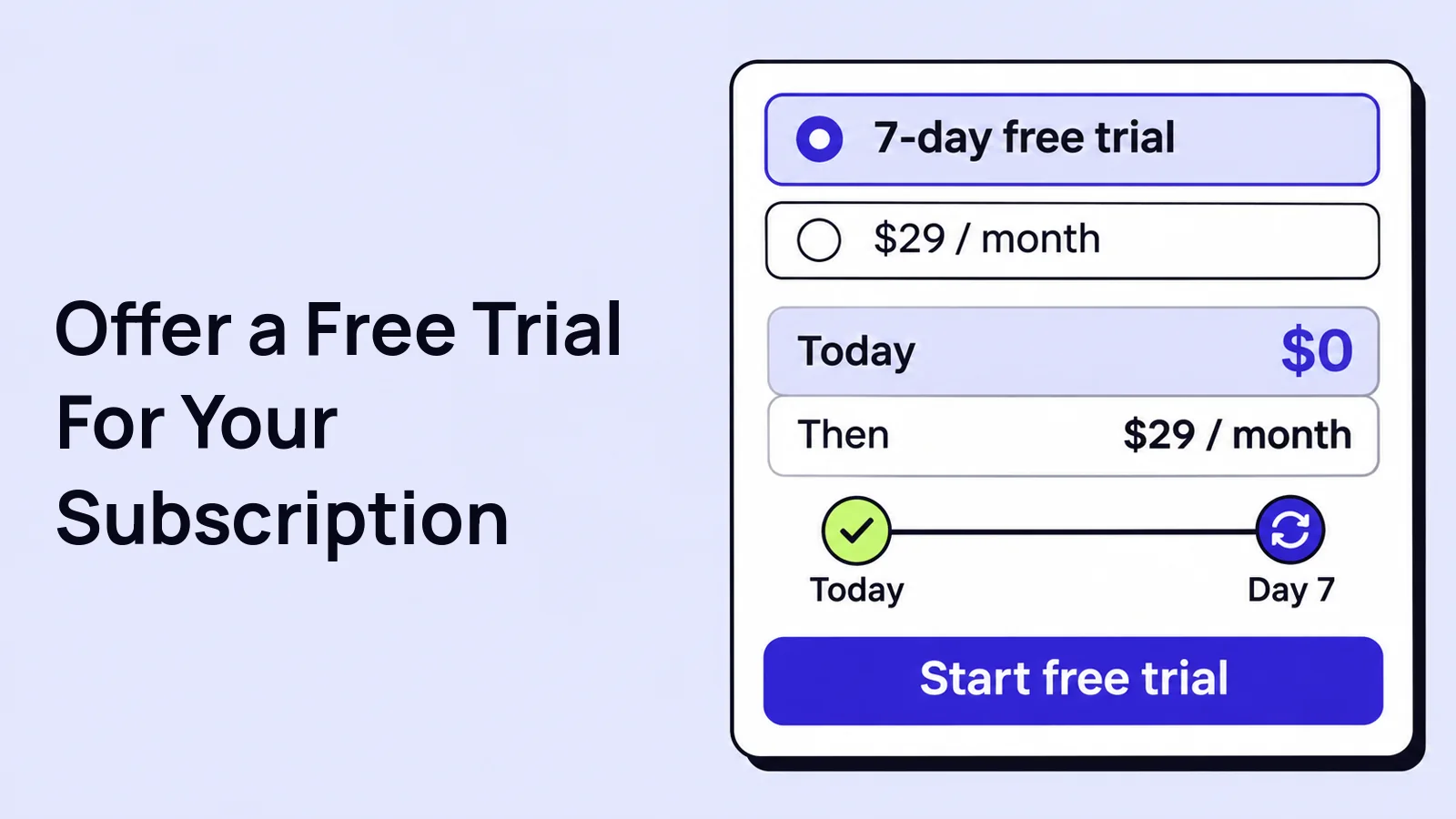
A WooCommerce subscription free trial delays the recurring subscription charge for a defined period. Set the terms in Swift Commerce Pro, check what the customer pays today and test the first renewal.
We will add a 7-day trial to a subscription that costs $29 each month, using Swift Commerce Subscriptions. Free trials require Swift Commerce Pro, installed alongside the Free plugin.
Before offering a WooCommerce subscription free trial
If you have not created the product yet, follow How to Create a Subscription Product in WooCommerce first. That guide covers enabling Subscriptions, choosing the product type, entering a recurring price and checking the customer’s account.
For this walkthrough, use a simple Subscription product rather than a Variable Subscription. Have a staging site, a test customer and your payment gateway’s test mode ready. Use an offer that does not require shipping for the first test, so shipping charges do not obscure the trial calculation.
A subscription schedule does not automatically create membership access or deliver a service. If the trial includes access to something, arrange that fulfillment separately and check that it starts and stops as intended.
1. Check that Subscriptions and Pro are active
- Open Swift Commerce → Products → Subscriptions.
- Confirm the feature is enabled and its settings are saved.
- Check that Swift Commerce Pro is active and recognized on the site.
- Go to Products and edit the subscription you want to test.
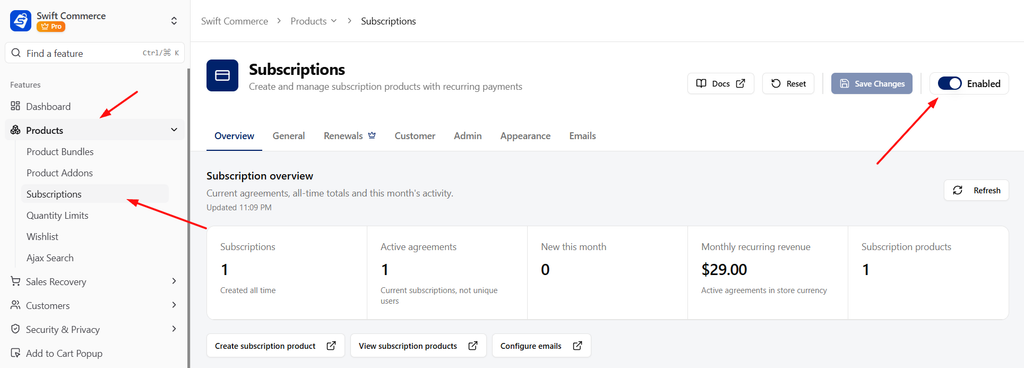
If the Free Trial settings are missing later, check Pro before changing the product type or installing another subscription plugin. The trial controls are part of Pro’s product editor integration.
2. Keep the paid billing schedule in place
- In Product data, select Subscription.
- Open the Subscription tab and expand Pricing.
- Set Subscription Price to 29.
- Choose every 1 and month(s).
- Choose Never expires for Subscription length if the offer should continue until it is canceled.
- Set the Sign-up fee to 0.
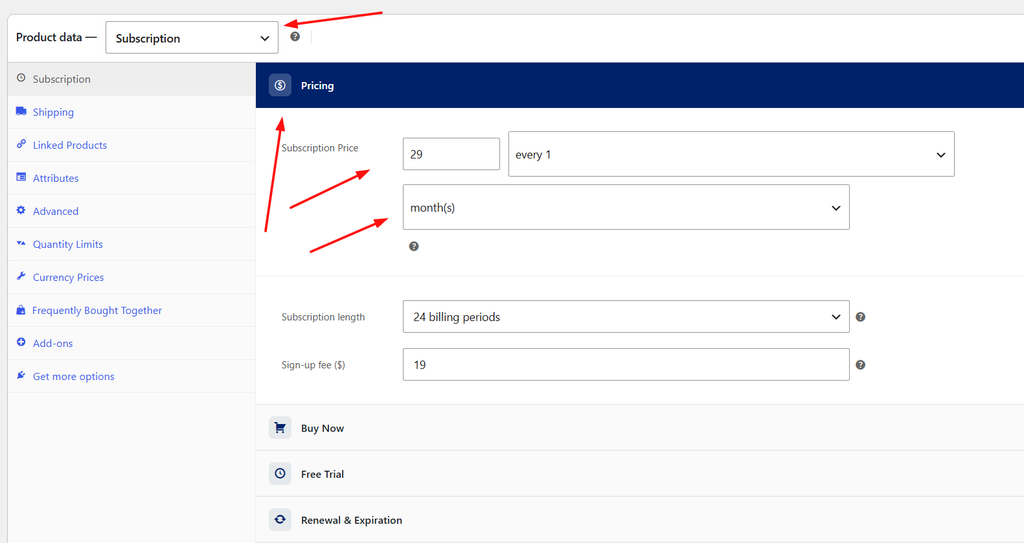
Do not change the recurring price to zero to create a trial. That changes the price of the subscription itself. Keep the amount you intend to charge after the trial and configure the trial separately.
The sign-up fee is separate from the recurring charge. A nonzero fee can still be charged at signup even when a trial is enabled. For our example, zero makes the pricing easier to explain and test.
3. Set the Free Trial length
- In the same Subscription tab, expand Free Trial.
- Enter 7 in Trial length.
- Choose day(s) in Trial period.
- Save the product draft or click Update if you are working on a staging copy of an existing product.
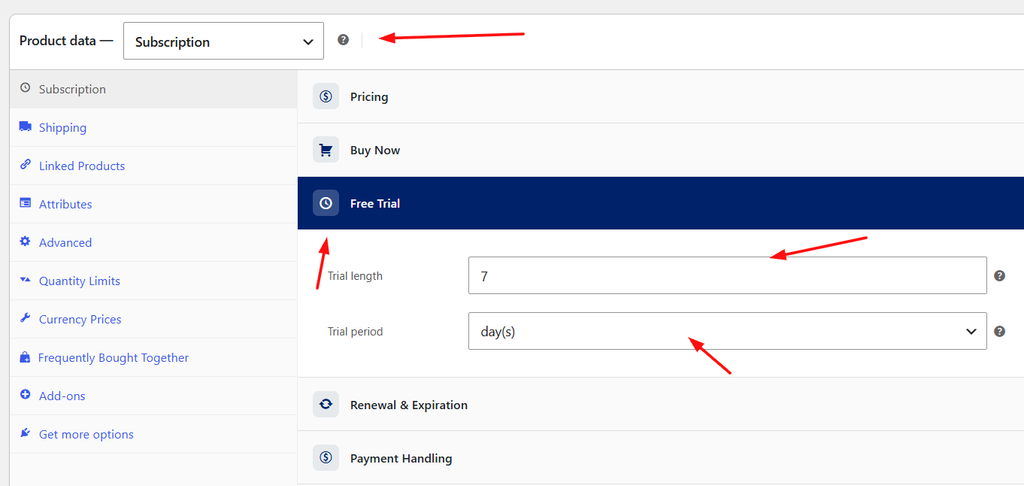
Together, these settings mean a seven-day trial. Trial length counts the units selected in Trial period: 2 and week(s) would mean two weeks. A trial length of 0 means no free trial.
Keep the billing and trial periods separate in your thinking. Seven days of trial followed by $29 every month is not the same as charging every seven days.
4. Explain the offer before checkout
Update the product’s short description so the customer does not have to infer the terms from a price label. For our example, you could write:
Try the subscription free for 7 days. After the trial, it costs $29 per month. No sign-up fee. Review the cancellation terms before subscribing.
Adapt that wording to the actual payment flow. Only promise an automatic charge if the specific payment gateway integration supports automatic renewals with Swift Commerce and you have verified it. If renewal requires manual payment, say so.
For physical products, review shipping and tax separately. A trial waives the recurring product charge during the trial; it is not a blanket promise that every possible checkout charge is zero.
5. Review customer cancellation and trial emails
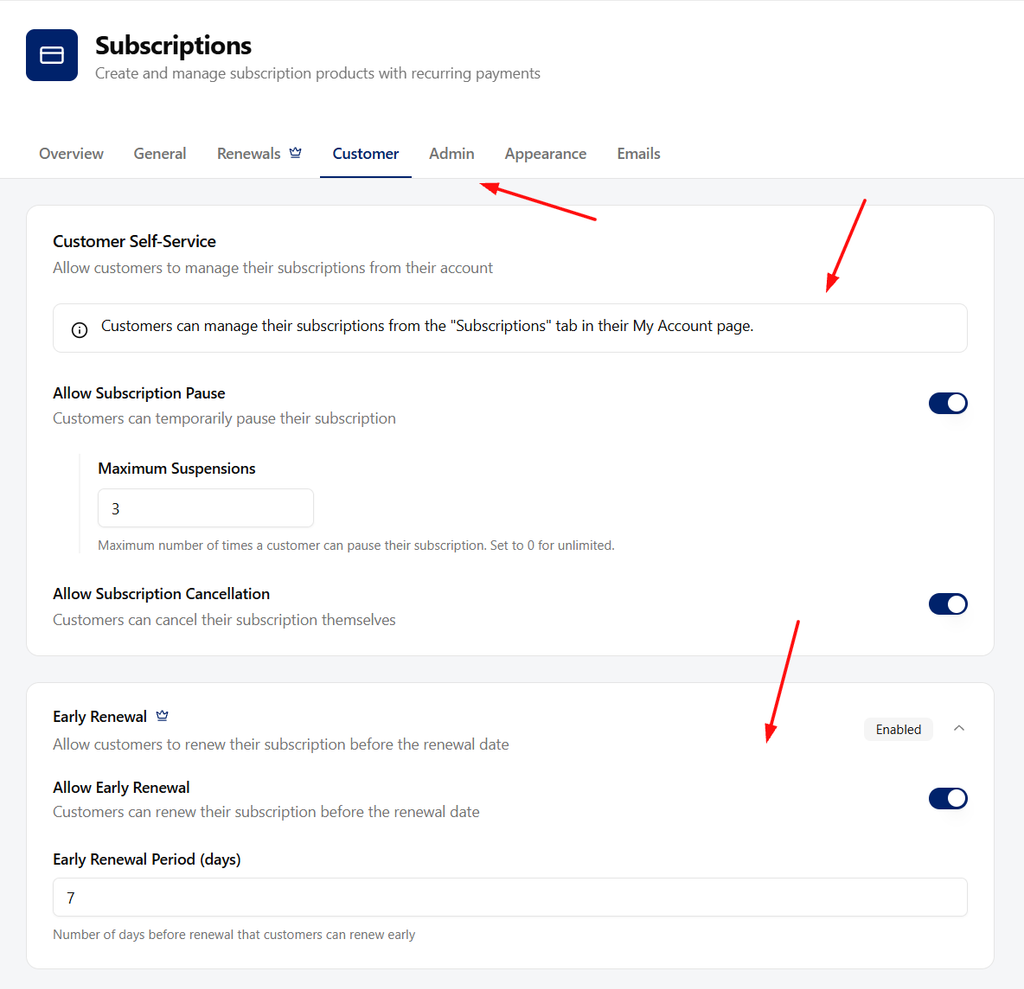
- Return to Swift Commerce → Products → Subscriptions → Customer.
- Review Allow Subscription Cancellation and save the policy you intend to offer.
- Open the Emails tab.
- Review the Pro Trial Ending notification and enable it if you want that reminder.
- Click Customize beside it to edit the supported subject and content with the built-in Email Customizer.
- Save your changes and send a test email to your own address.
Use the email to explain what happens next, not to surprise the customer with a charge. Keep subscription placeholders intact so the message can show the appropriate details. Branding and design settings in the Email Customizer are shared across supported emails, so review other notifications after changing them.
6. Test signup and the end of the trial
Do not stop after seeing “free trial” on the product page. Complete a sandbox checkout and inspect the resulting subscription.
- The product page describes the trial and the later $29 monthly charge.
- The cart and checkout show the correct amount due now, including any fees, tax or shipping.
- The test customer can create or use an account and complete the order.
- The subscription record shows a trial end and next payment date consistent with the offer.
- The customer can view it under My Account → Subscriptions.
- The intended cancellation action is available and works on a test subscription.
- The relevant email arrives with the correct subscription details.
Then test the first payment after a trial. Use a separate short-trial product and test environment if waiting seven days is impractical. Check the scheduled renewal, gateway response, renewal order and subscription status. A zero-total signup does not prove a payment method was saved or that the next charge will succeed.
Do not assume changing the trial on a product will rewrite dates on existing customer subscriptions. Test product changes with a fresh test subscription, and review existing subscriptions separately if they need changes.
Frequently asked questions
Can I offer a trial without Pro?
Basic subscription products are available in Free, but the Free Trial product controls require Pro. Changing the regular subscription price to zero is not an equivalent trial setup.
Does a free trial mean no payment details are required?
Not necessarily. That depends on the checkout and payment gateway integration. Verify whether a reusable payment method is collected and how the first post-trial payment will be handled before describing the trial as “no card required.”
Can I use days, weeks or months for the trial?
Yes. Select the unit in Trial period and enter the number in Trial length. Keep your product description consistent with those settings.
Once the full trial-to-renewal flow works, apply the verified settings to the live product. The Subscriptions reference covers the other customer, renewal and email options.
Check the Swift Commerce listing on WordPress.org for Free installation requirements and downloads.
For the full billing, renewal and account controls, see Subscriptions capabilities. To review the shared email-design controls used by Trial Ending and other supported notifications, see Email Customizer.