


WooCommerce email customizer.
Messages that fit your store.
Use the WooCommerce email customizer for supported Swift Commerce notifications. Edit each message, apply shared branding, preview desktop and mobile layouts and send a test before saving.
A shared email editor inside supported Swift Commerce features for WordPress and WooCommerce.
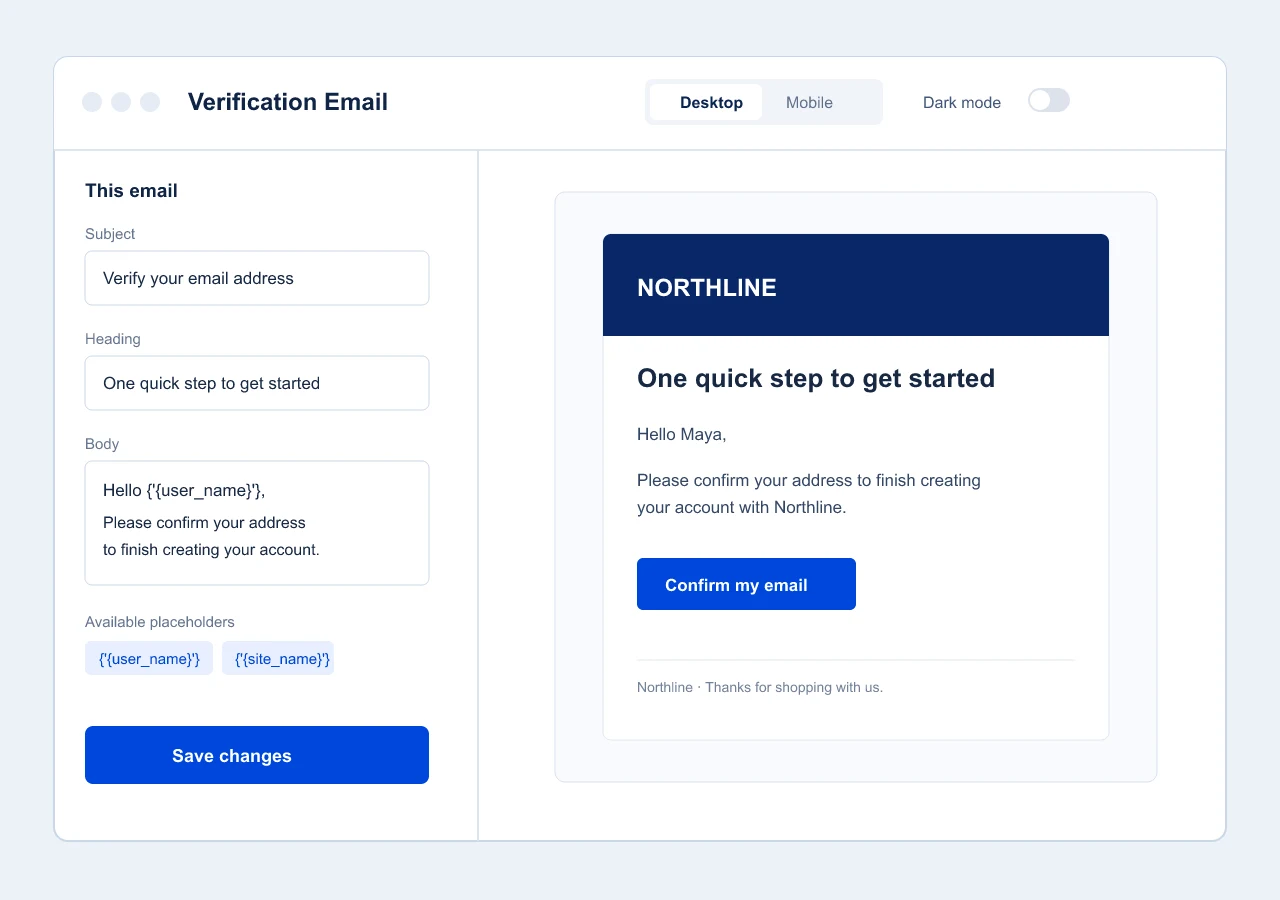
One WooCommerce email customizer for supported store messages.
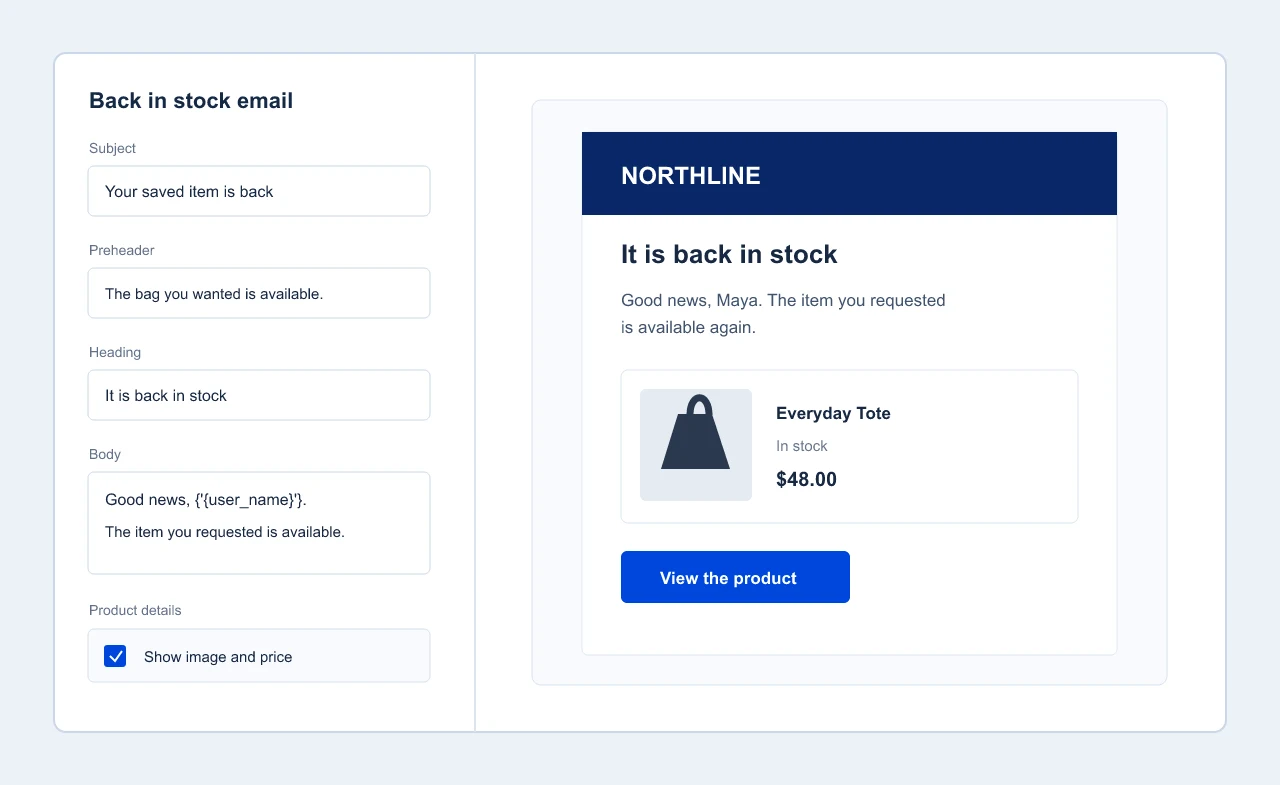
A verification message needs a clear action. A back-in-stock alert needs product details. Email Customizer opens from the feature you are configuring, with content controls for that message and shared design controls for the whole Swift Commerce email family.
Give each email its own voice.
Edit the subject, heading and supported body text in the feature that sends that message. Add preheader text and additional content when that email type supports them, so the inbox preview and the message itself say the right thing.
Use available placeholders for names, product details and links rather than writing information by hand. Some emails also expose product-card or coupon controls; the editor shows only the controls that apply to the email you are editing.
Set the brand once. Keep the messages consistent.
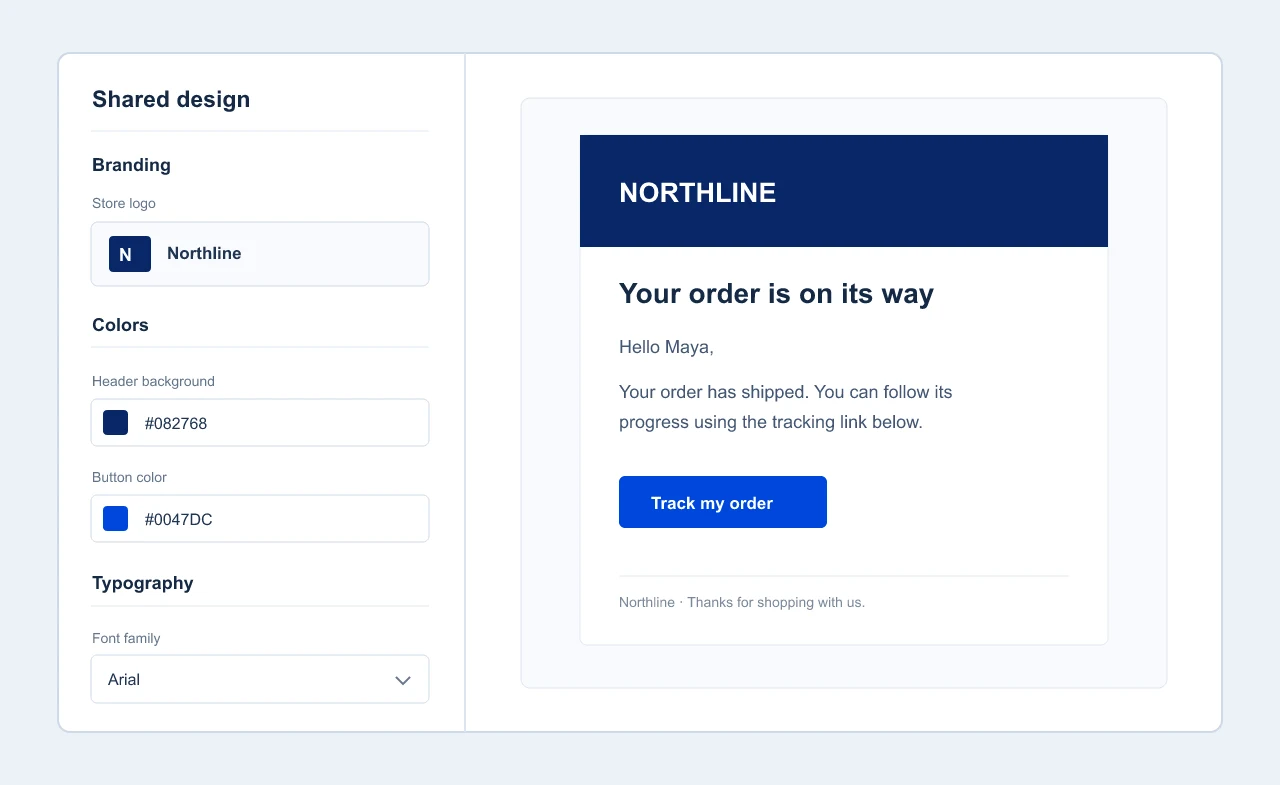
Upload your logo and choose the colors, typography and layout for Swift Commerce emails in the shared design panel. Adjust header and body colors, text, links, buttons, width and spacing without rebuilding every template separately.
The footer can carry your store message, copyright text and supported social links. These design choices are shared; the words in “This email” stay specific to the message you opened.
Preview before a customer sees it.
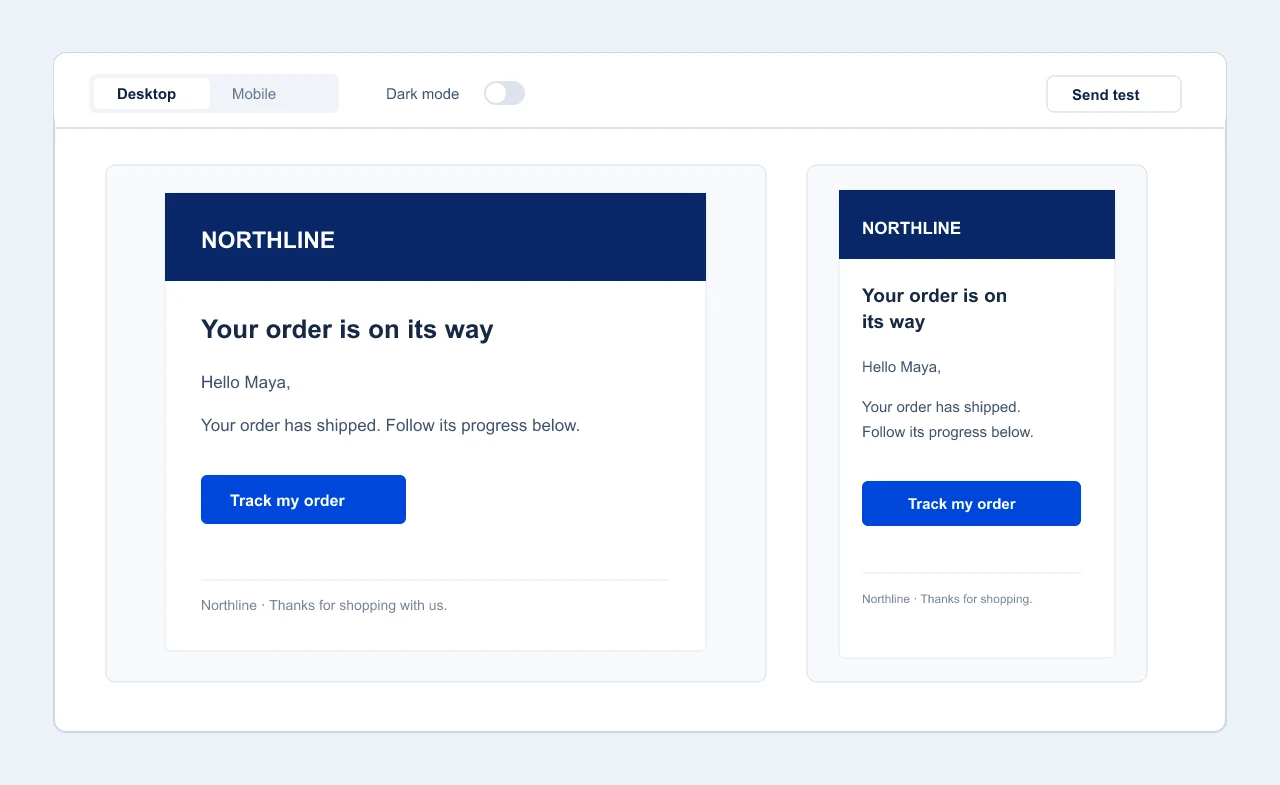
Switch between desktop and mobile previews to check wrapping, button size and spacing. Use the dark-mode simulation to spot contrast problems, then send a test email to inspect it in a real inbox before you save the final version.
The preview uses sample data, and email clients can render HTML differently. Testing the actual message is the final check, not a step the preview can replace.
Open it from the email you want to change.
In the Swift Commerce dashboard, open a feature with email settings, choose a message, then select Customize Email. For example, Email Verification → Verification Email → Customize Email opens the verification message. Edit its content, adjust the shared design if needed, preview, send a test and save.
More email workflows.
One familiar editor.
Email Customizer is included wherever a supported email is available in your plan. Pro adds advanced workflows across the suite and premium support; there is no separate customizer purchase.
Questions about Email Customizer.
A few important boundaries before you start editing.
Which emails can I edit?
Open Customize Email from a supported Swift Commerce feature screen. Examples include verification, back-in-stock, tracking and recovery messages; other email types depend on the features and edition enabled on your site.
Does a design change affect all of my emails?
Shared branding and layout apply to supported Swift Commerce emails. Subject, heading, body and other “This email” fields change only the selected message. Site-wide sender settings have a broader WordPress scope, and WooCommerce may use its own sender configuration.
Will the preview look identical in every inbox?
No. The preview uses sample data, and email apps can render HTML differently. Use Send test and check the actual inboxes that matter to your customers.
Does this replace my email delivery service?
No. Email Customizer designs the message; your WordPress mail setup still handles delivery. A reliable mail service is important if messages are not arriving.
Is this a newsletter or campaign builder?
No. It edits the emails generated by supported Swift Commerce workflows. It does not create broadcast campaigns or subscriber lists.