


Spam customer accounts can arrive through your store’s registration form even when the WordPress login page is protected. WooCommerce has its own customer registration form, so it needs its own protection setting.
This guide shows you how to add Cloudflare Turnstile to the WooCommerce registration form using Swift Commerce’s reCAPTCHA feature. We will enable registration on My Account if needed, connect Turnstile, select WooCommerce Registration, and test a real customer signup.
The walkthrough covers the standard WooCommerce My Account registration form. Checkout registration, WordPress registration, and custom registration forms are separate flows and should not be assumed to be covered by this setting.
Prepare the WooCommerce registration form for Turnstile
- A working WordPress store with WooCommerce active.
- Swift Commerce Free and Swift Commerce Pro installed, with Pro access active. Cloudflare Turnstile is a Pro provider in Swift Commerce.
- A Cloudflare account and a Turnstile widget configured for the store’s hostname, or access to create one.
- Access to an email inbox you control for a test registration.
- A private browser window so you can see the registration form while logged out.
Keep an administrator session open while you configure the feature. If you change an existing CAPTCHA provider, the change affects all selected forms, which may include the WordPress login page.
1. Check that My Account registration is enabled
- In WordPress, open WooCommerce → Settings → Accounts & Privacy.
- In the account-creation settings, enable registration on the My account page. Current WooCommerce versions label this On “My account” page; older versions may describe it as allowing customers to create an account on that page.
- Save the WooCommerce settings.
- Open your store’s actual My Account page in a private browser window and confirm that the registration form is visible.
WooCommerce’s Accounts and Privacy documentation explains this setting. You do not need to enable WordPress’s separate “Anyone can register” setting just to show WooCommerce registration.
If you are already signed in, My Account normally shows the account dashboard rather than the registration form. That is why the logged-out test matters.
If registration still does not appear, check which page is assigned as My account under WooCommerce → Settings → Advanced. Also check whether your theme or another extension replaces the standard form. Turnstile does not create a registration form when the form itself is disabled.
2. Create or reuse a Turnstile widget for the store
If Cloudflare Turnstile is already working through Swift Commerce on this same store, you can use its existing configuration. You do not need to create a separate key pair merely to select another protected form.
For a new setup:
- Open the Cloudflare Turnstile dashboard.
- Select Add widget and enter a name such as Store Customer Forms.
- Add the store’s hostname under hostname management.
- Choose Managed for the widget mode.
- Create the widget and copy the sitekey and secret key.
Use Cloudflare’s widget setup reference if you need help locating those controls. The secret key must not appear in public screenshots or page content.
For the hostname, enter a domain such as shop.example.com, not https://shop.example.com/my-account/. Check Cloudflare’s hostname rules when the store uses a subdomain or a separate staging domain.
3. Connect Turnstile in Swift Commerce
- Open Swift Commerce → Security & Privacy → reCAPTCHA.
- Choose the Setup tab.
- Under CAPTCHA Provider, select Cloudflare Turnstile.
- Enter the widget’s sitekey in Turnstile API Keys → Site Key.
- Enter the matching secret in Secret Key.
- Under Widget Mode, select Always visible for the initial test.
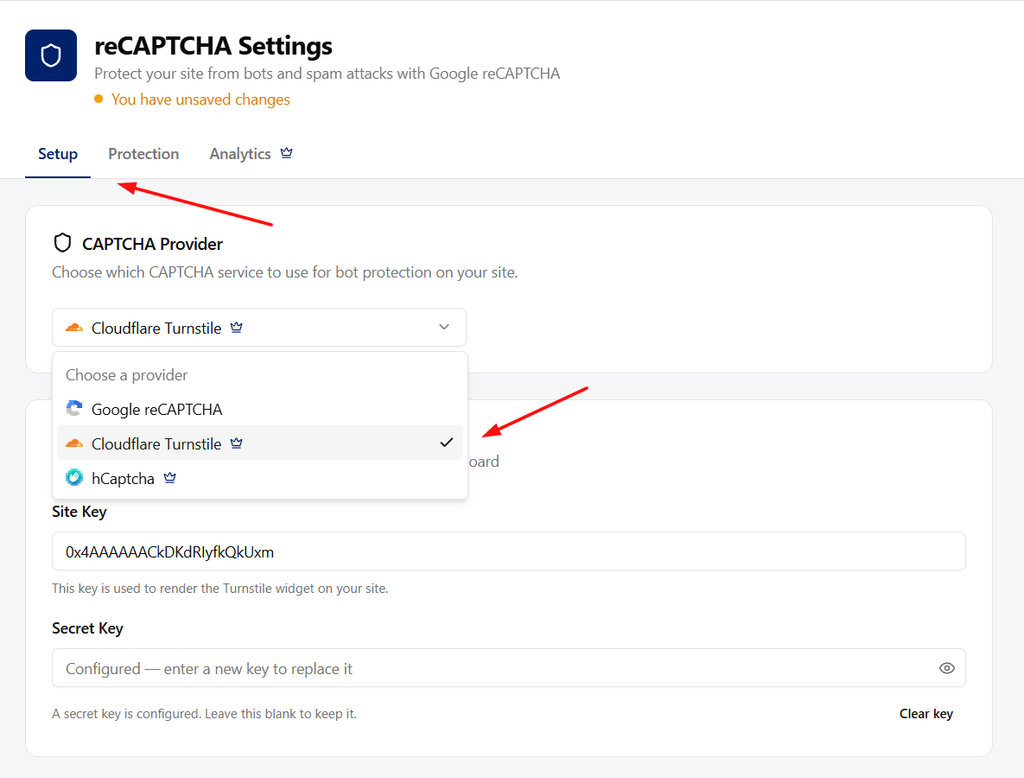
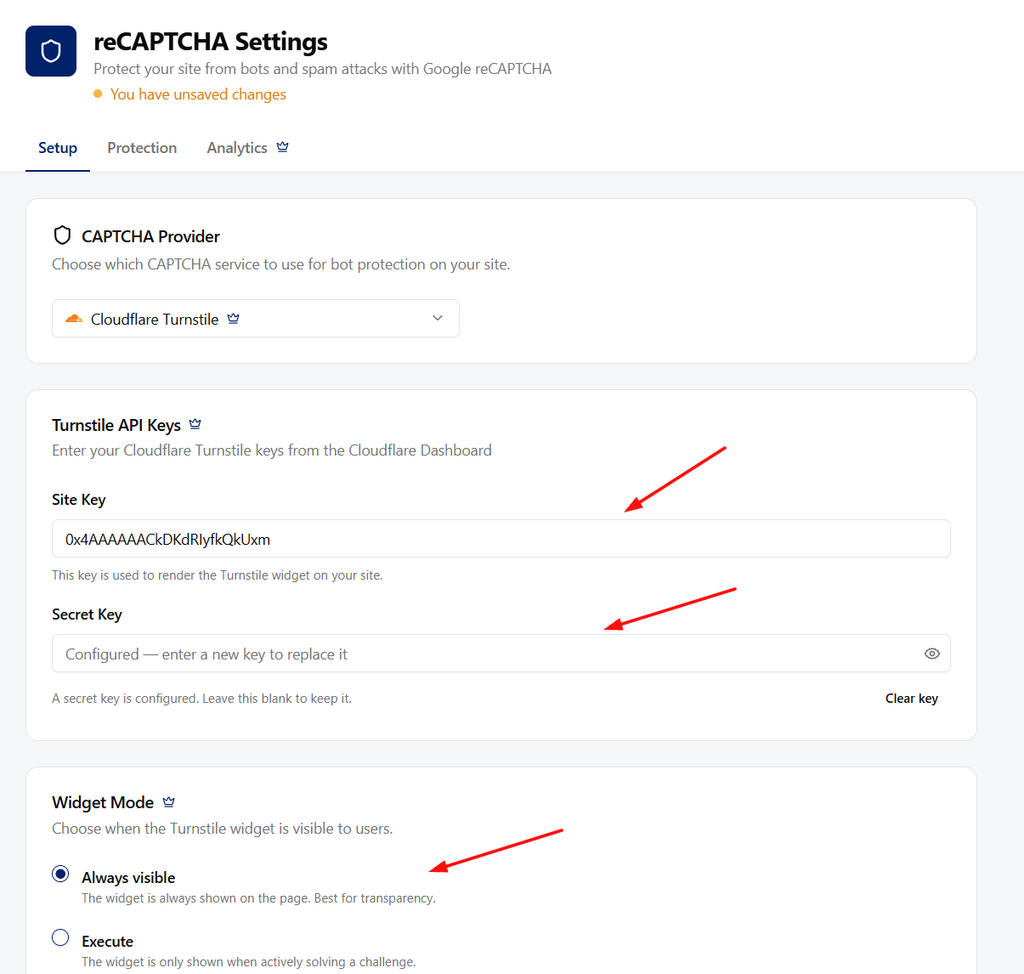
If you are reusing an existing Turnstile configuration, check the saved sitekey and configured-secret indicator instead of replacing credentials unnecessarily.
If Turnstile is not offered in the provider dropdown, check that Swift Commerce Pro is active and recognized. Google reCAPTCHA is the Free provider; Turnstile is not unlocked just by creating a Cloudflare account.
Swift Commerce’s Always visible setting controls the widget’s appearance. It is separate from Cloudflare’s Managed challenge mode. Even with a visible widget, some visitors may pass without being asked to click.
There is one selected CAPTCHA provider for the feature, not a separate provider per form. If another provider is already protecting login or password reset, changing this dropdown changes those selected forms too. Include them in your testing.
4. Protect WooCommerce Registration
- Open the Protection tab.
- Under Protected forms, select WooCommerce Registration.
- Review the remaining form selections and retain any other protection you intend to use.
- Turn on the feature using its header switch if it is off.
- Click Save Changes.
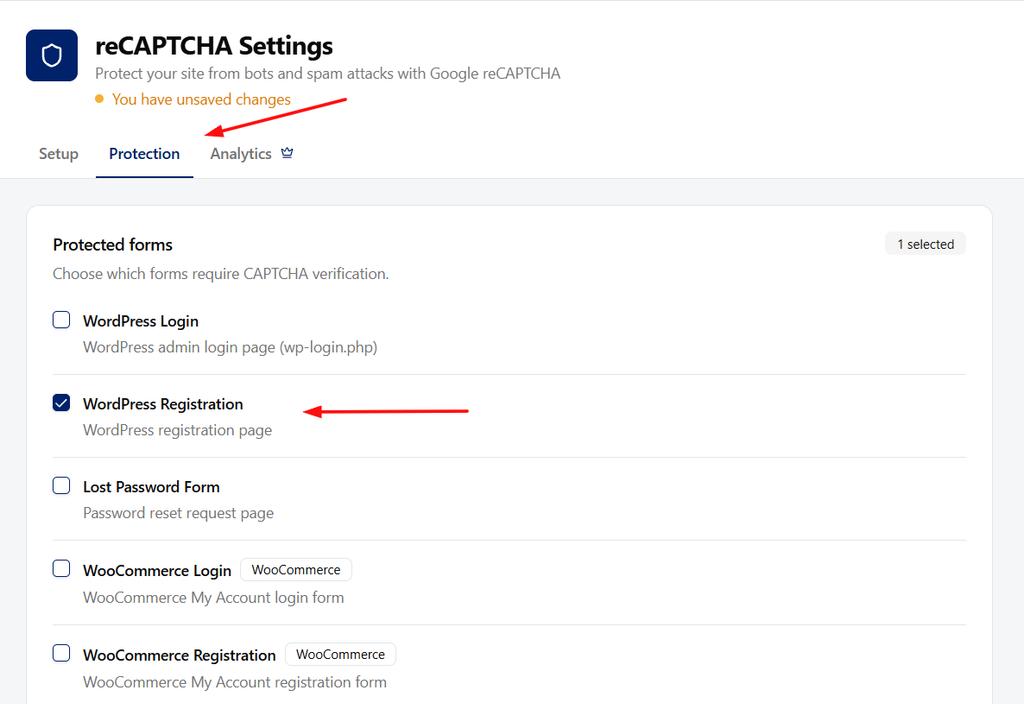
The form names matter here:
- WooCommerce Registration is the customer registration form on My Account. This is the option used in this guide.
- WordPress Registration is the separate WordPress registration screen.
- WooCommerce Login is the customer sign-in form, not account creation.
- Checkout Page is a separate protection location for checkout. Test checkout independently if you enable it.
Selecting WordPress Registration alone will not protect WooCommerce’s My Account registration form. Likewise, enabling WooCommerce Registration does not mean every third-party registration widget is supported.
5. Check the form as a logged-out customer
- Open a new private browser window and visit the My Account page.
- Find the Register form and check that Turnstile is displayed.
- Wait for verification to finish and complete any checkbox requested.
- Fill in the fields required by your WooCommerce registration setup.
- Register using a fresh email address you control.
- Confirm that the expected customer account was created and that any password-setup or verification email follows your store’s settings.
Use a fresh test address. A duplicate-email error does not prove that the Turnstile check failed.
WooCommerce settings can determine whether customers choose a password on the form or receive a password-setup link. The CAPTCHA configuration does not replace that account-creation behavior.
Check the new customer under Users in WordPress. If your store also requires email verification or admin approval, follow that configured process rather than assuming successful CAPTCHA verification should immediately grant full account access.
6. Test the failure path and mobile layout
- On staging, confirm that a registration without valid CAPTCHA verification is not accepted. With Managed mode, verification may finish automatically, so not clicking a checkbox is not a reliable failure test.
- Make sure your test connection is not covered by an IP whitelist.
- If needed, have your developer block the Turnstile script in a staging browser session and confirm that the form does not create an account without a valid verification result.
- Test the normal customer signup flow on mobile.
- If switching providers affected other protected forms, test each one before finishing.
If you use a narrow registration column, review Widget appearance in the Protection tab and test the available size settings. Do not fix an overflowing widget by hiding it with CSS.
When a challenge is rejected or cannot be verified, the visitor should receive an error rather than have an account created without the intended check. Test the actual submission, not just whether the widget looks correct.
If registration or Turnstile is not working
The registration form is missing
Check WooCommerce’s My Account account-creation setting, the assigned page, and whether you are logged out. If a theme or form builder replaces the standard WooCommerce form, confirm that integration separately.
The form appears but Turnstile does not
Check the selected provider, both credentials, the enabled feature switch, and the WooCommerce Registration checkbox. Review any IP whitelist. Also check whether a script blocker, consent setup, or JavaScript optimization prevents the provider script from running.
Verification passes visually but the form returns an error
Check that the secret matches the sitekey and that the widget allows the store’s hostname. Then read the actual error: an existing email address, missing required registration field, or another registration rule can also reject the submission.
The store already uses another CAPTCHA plugin
Do not add a second CAPTCHA to the same registration form and assume the checks will cooperate. Test the replacement on staging and use one integration for the form. Keep protection on unrelated forms until you have a verified replacement for those too.
Frequently asked questions
Does this also protect the registration form at checkout?
This guide configures the My Account registration form. If you want checkout protection, use the separate Checkout Page setting and test the exact checkout type and account-creation flow your store uses.
Do I need to turn on WordPress’s Anyone can register option?
No. WooCommerce’s My Account registration setting is separate. Enable the WooCommerce account-creation option for that page rather than opening another registration route unnecessarily.
Does Turnstile verify the customer’s email address?
No. CAPTCHA verification and email verification solve different problems. If you need customers to confirm control of their email address, configure Swift Commerce’s Email Verification feature as well.
Will Turnstile stop every unwanted account?
No CAPTCHA guarantees that every unwanted signup will be blocked. Protect the intended forms, verify the failure path, and investigate which registration route is receiving unwanted submissions if the problem continues.
Once a legitimate registration succeeds and invalid verification is rejected, keep the working settings and monitor the customer experience. The Swift Commerce CAPTCHA documentation covers additional protected forms and optional analytics.
For the next setup task, see protecting the WordPress login form with Turnstile.