


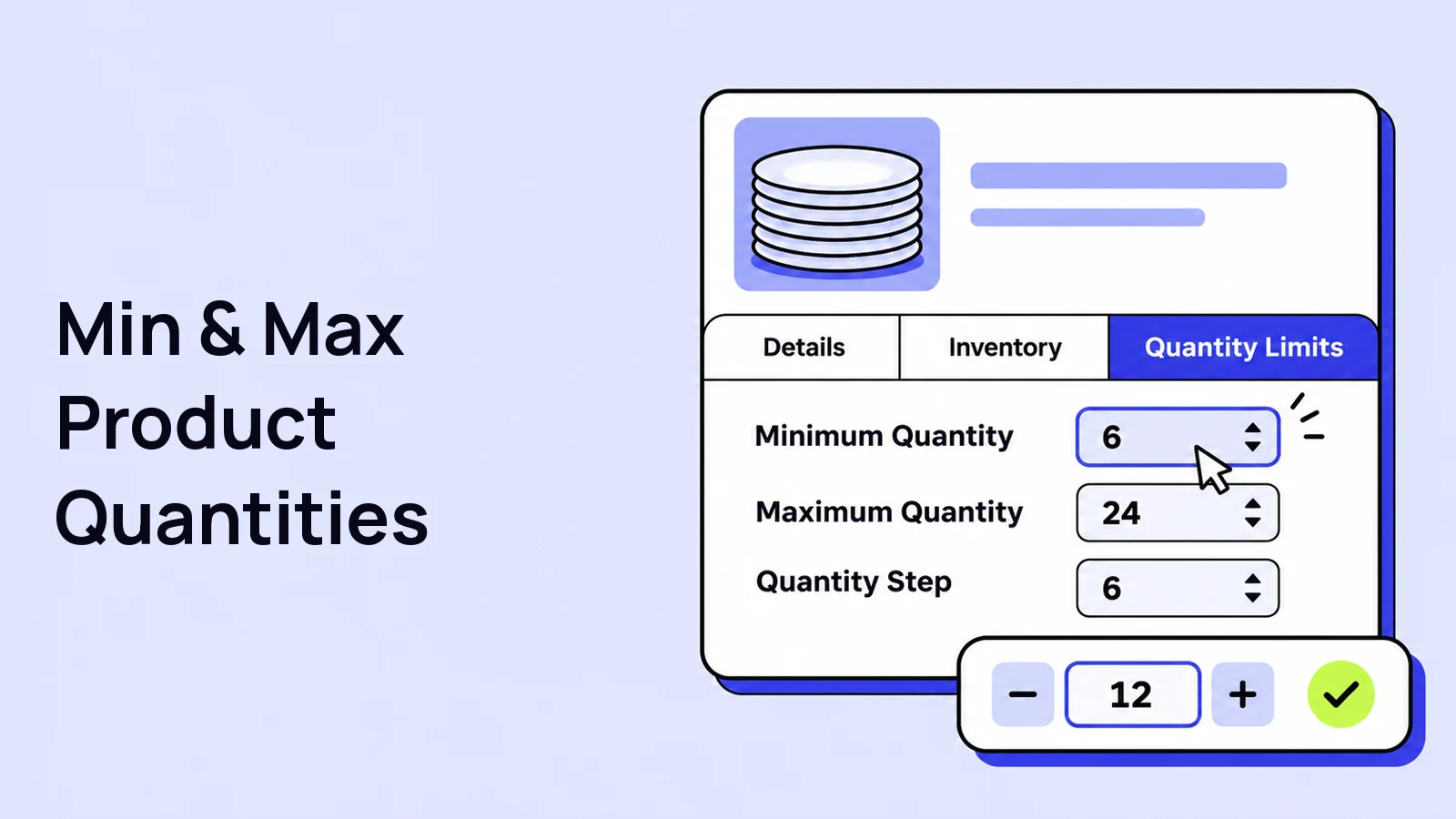
Some products only make sense when customers buy more than one. You might sell packaging in batches, require a minimum order of six plates, or limit a small production run to two items per order.
Set minimum and maximum product quantities in WooCommerce with Swift Commerce’s Quantity Limits feature. The setup below applies the limits to the individual product you are editing. The exact location is Products → All Products → Edit product → Product data → Quantity Limits. In the panel headed Quantity Limits by Swift Commerce, you can enter that product’s minimum, maximum, and quantity step. This product-level setup is available in Swift Commerce Free.
The values you enter here belong to the product you are editing. They are not a store-wide minimum or a limit on the total number of items in the cart. For example, setting a maximum of 24 on dinner plates restricts that product to 24 units per order, not every product in the store. It also does not restrict the customer’s purchases across separate orders.
Before you start
- Make sure WooCommerce and Swift Commerce are installed and active. If Swift Commerce is not installed, go to Plugins → Add New Plugin, search for Swift Commerce, then install and activate it.
- Have a simple product ready to edit. We will cover variable products separately below.
- Use the WooCommerce product editor with the Product data panel. The steps below refer to that editor.
- Start on a staging site, or use a test product, if changing the rules could affect current orders.
For this example, imagine you sell individual dinner plates at $8 each. Customers should buy at least 6 plates, with a maximum of 24 per order. Prices here are examples; use your own store currency and product prices.
If the feature is not enabled yet: open Swift Commerce → Products → Quantity Limits, turn on the feature, and click Save Changes. This makes the Quantity Limits tab available in the product editor. You do not enter the individual product’s minimum or maximum on that dashboard screen.
1. Open Quantity Limits in the product’s Product data panel
- Go to Products → All Products.
- Edit the product you want to restrict.
- Scroll to the Product data panel.
- Click Quantity Limits in the Product data tabs. You should see the heading Quantity Limits by Swift Commerce and the fields shown below.
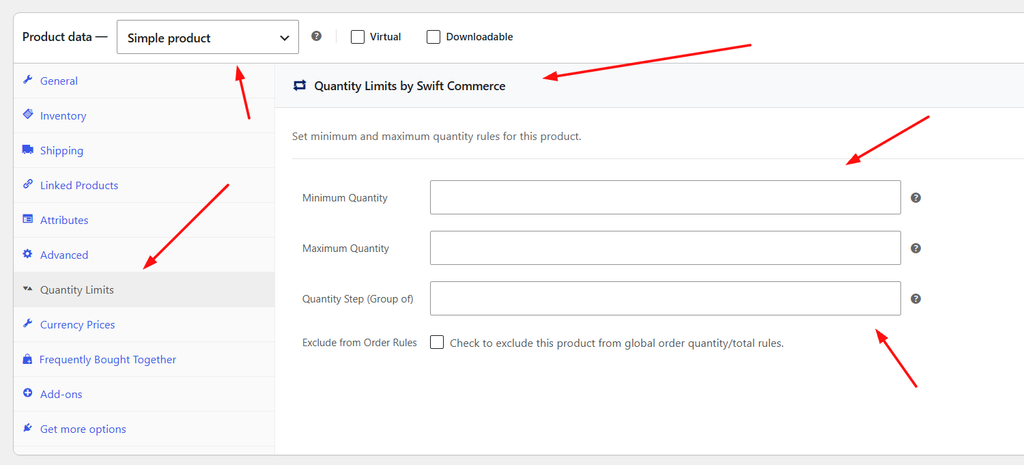
If the tab is missing, return to Swift Commerce and check that Quantity Limits is enabled and saved. Then reload the product editor. Activating the plugin alone is not the same as enabling this feature.
2. Set minimum and maximum product quantities
For our dinner-plate example, enter these values:
| Field | Value | What it means |
|---|---|---|
| Minimum Quantity | 6 | Customers must add at least 6 units of this product. |
| Maximum Quantity | 24 | The order can contain up to 24 units of this product. |
| Quantity Step (Group of) | 1 | Customers can choose any whole number within the range. |
With a step of 1, customers can buy 6, 7, 8, and so on, up to 24 of this product. You can give another product a completely different range by editing its own Quantity Limits tab.
Only need one limit? Leave Minimum Quantity empty if there is no minimum, or leave Maximum Quantity empty if there is no maximum from this feature. Stock availability and WooCommerce’s other purchase restrictions still apply.
Keep the maximum equal to or greater than the minimum. A minimum of 12 with a maximum of 6 gives customers no valid quantity to buy.
3. Set Quantity Step (Group of) if you sell in multiples
A minimum quantity and a quantity step solve different problems. A minimum of 6 allows someone to buy 7 unless you also set a step.
To sell the plates only in groups of six, change Quantity Step (Group of) to 6. Keep the minimum at 6 and the maximum at 24, then update the product.
The valid quantities are now 6, 12, 18, and 24. Quantities such as 7 or 15 do not match the rule.
Choose limits that leave at least one valid multiple. For example, a minimum of 5, maximum of 5, and step of 6 cannot work together.
Also check how the product is priced. If one WooCommerce unit is one plate, a quantity of 6 means six plates. If the product is already a boxed set of six plates, a quantity of 6 means six boxes. Set the rules around the unit you actually sell.
4. Save the product
Click Update in the product editor to save the limits for this product. For a new product, use Save draft while you finish the setup, or Publish when it is ready. Saving the Swift Commerce dashboard settings does not save changes made in an open product editor.
The panel also contains Exclude from Order Rules. That checkbox excludes this product from global order quantity/total rules; it does not remove the product’s own minimum, maximum, or step. Leave it unchecked unless you specifically need that exclusion.
5. Test this product’s limits on the storefront
- Open the product page in a private browser window so you are checking the customer-facing version.
- Check the quantity selector and any quantity notice. To display the notice, enable Show Product Notices under Swift Commerce → Products → Quantity Limits → General and save those dashboard settings.
- Add the minimum valid quantity to the cart. For the pack-of-six example, that is 6.
- Try another valid quantity, such as 12, and confirm it is accepted.
- Try a quantity below 6, above 24, or not divisible by 6. Depending on your theme, the quantity control may prevent the value or WooCommerce may show a validation message.
- Change the quantity in the cart as well. Verify the rule still applies, then check the checkout page with your normal checkout setup.
- Check the product on mobile, particularly if your theme uses custom plus and minus controls.
Test adding the product more than once, too. A customer should not be able to bypass the maximum by adding smaller quantities repeatedly to the same cart.
If the quantity field is missing, check Product data → Inventory → Sold individually. That WooCommerce setting limits the product to one unit per order, so it is not suitable for a product with a minimum of 6. Also make sure the available stock is not lower than your minimum.
How to set limits for product variations
For a variable product, you can give the parent product a default rule and override individual values on its variations.
- Edit the variable product under Products → All Products.
- Set the shared defaults in the product’s Quantity Limits tab.
- Open Variations and expand the variation you want to change.
- Find its Quantity Limits fields: Min Qty, Max Qty, and Step (Multiples).
- Enter the values for that variation, save the variation changes, and update the product.
For example, the parent product could require 6 units, while a clearance color requires only 2. Leave a variation field blank to inherit that particular value from the parent. Clearing a variation value does not necessarily remove the parent’s rule.
The Combine Variation Quantities setting under Swift Commerce → Products → Quantity Limits → General controls whether variations are counted together for maximum limits. If customers can mix colors or sizes, test a cart containing more than one variation and make sure the result matches your policy.
Do you need Pro for minimum and maximum quantities?
Product-level and variation-level minimums, maximums, and quantity steps are available in Swift Commerce Free. You do not need Pro for the main setup in this tutorial.
Pro adds category-level rules and cart-level quantity and spend restrictions. Those are useful if your requirement is “at least 10 items across the cart” or “a minimum order value of $50,” rather than “at least 6 of this product.” Keep that distinction clear when choosing where to put a rule.
For the full settings reference, see the Quantity Limits documentation.
Frequently asked questions
Can I set a minimum without setting a maximum?
Yes. Enter the minimum and leave the maximum empty. WooCommerce stock and other purchase settings can still limit the quantity available.
Is a maximum quantity the same as a customer purchase limit?
No. This setup limits the quantity in an order, not the customer’s total purchases over time. It is not a one-per-customer or lifetime purchase limit.
Does a step of 6 mean customers can buy only 6?
No. It means valid quantities must be multiples of 6. If the maximum is 24, customers can buy 6, 12, 18, or 24.
How do I remove a product’s quantity limits?
Clear the product’s minimum and maximum fields, remove the step restriction or set it to 1, and update the product. For variations, check the parent product as well. If you use Pro, a category or cart rule may still apply.
Start with one product and test the complete purchase flow. Once the minimum, maximum, and step behave the way you expect, apply the same approach to the rest of your catalog.
Check the Swift Commerce listing on WordPress.org for Free installation requirements and downloads.