


WooCommerce quantity limits.
Clear rules for each purchase.
Set WooCommerce quantity limits with product minimums, maximums and pack-size steps. Pro adds role rules, purchase caps, product spend limits, category rules and quantity dropdown controls.
Product Quantity Limits for WooCommerce. Part of the Swift Commerce WordPress plugin.
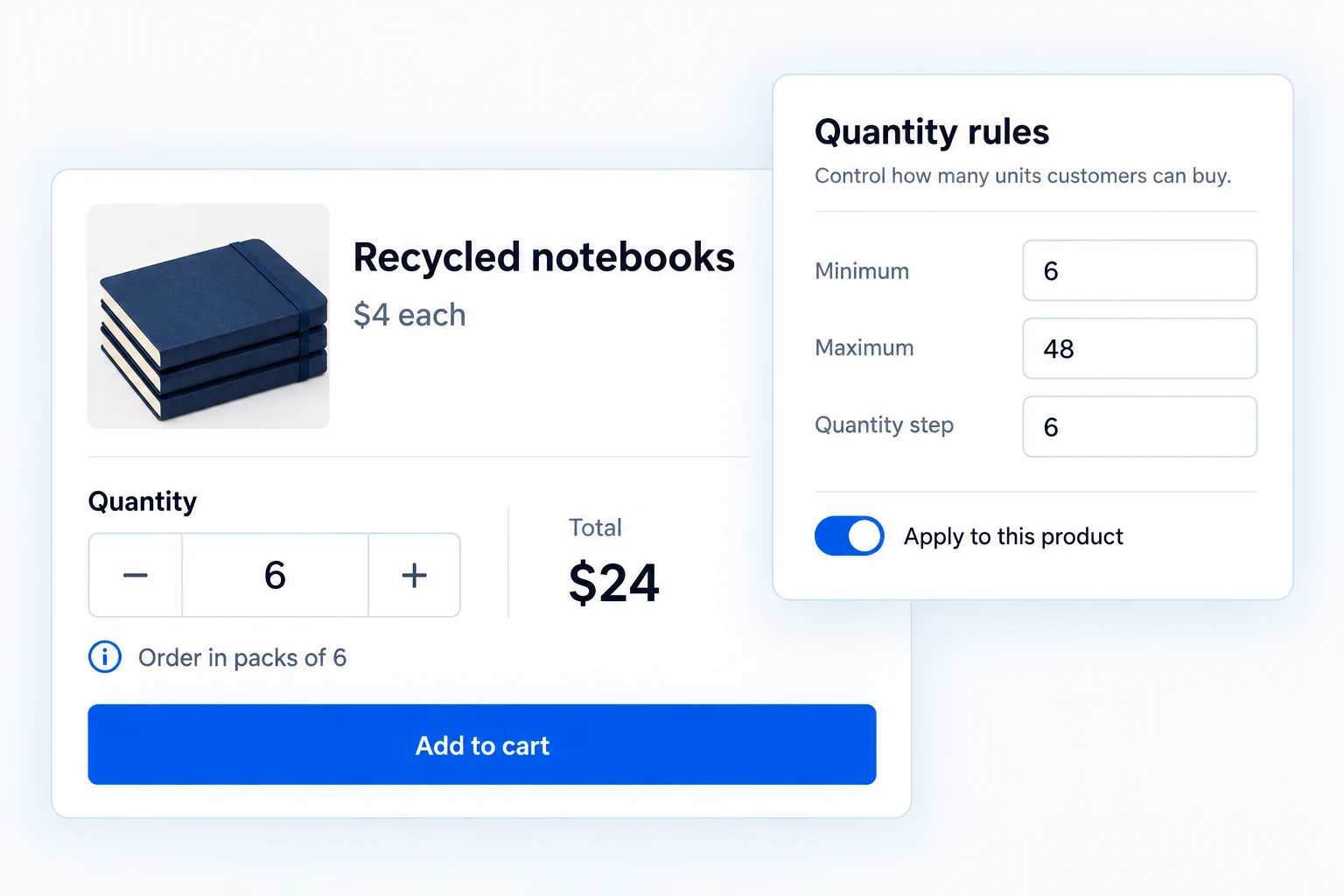
WooCommerce quantity limits make buying rules clear.
Set product and variation minimums, maximums and pack-size steps in Free. Pro extends the rules across categories and carts, with custom messages and live quantity feedback.
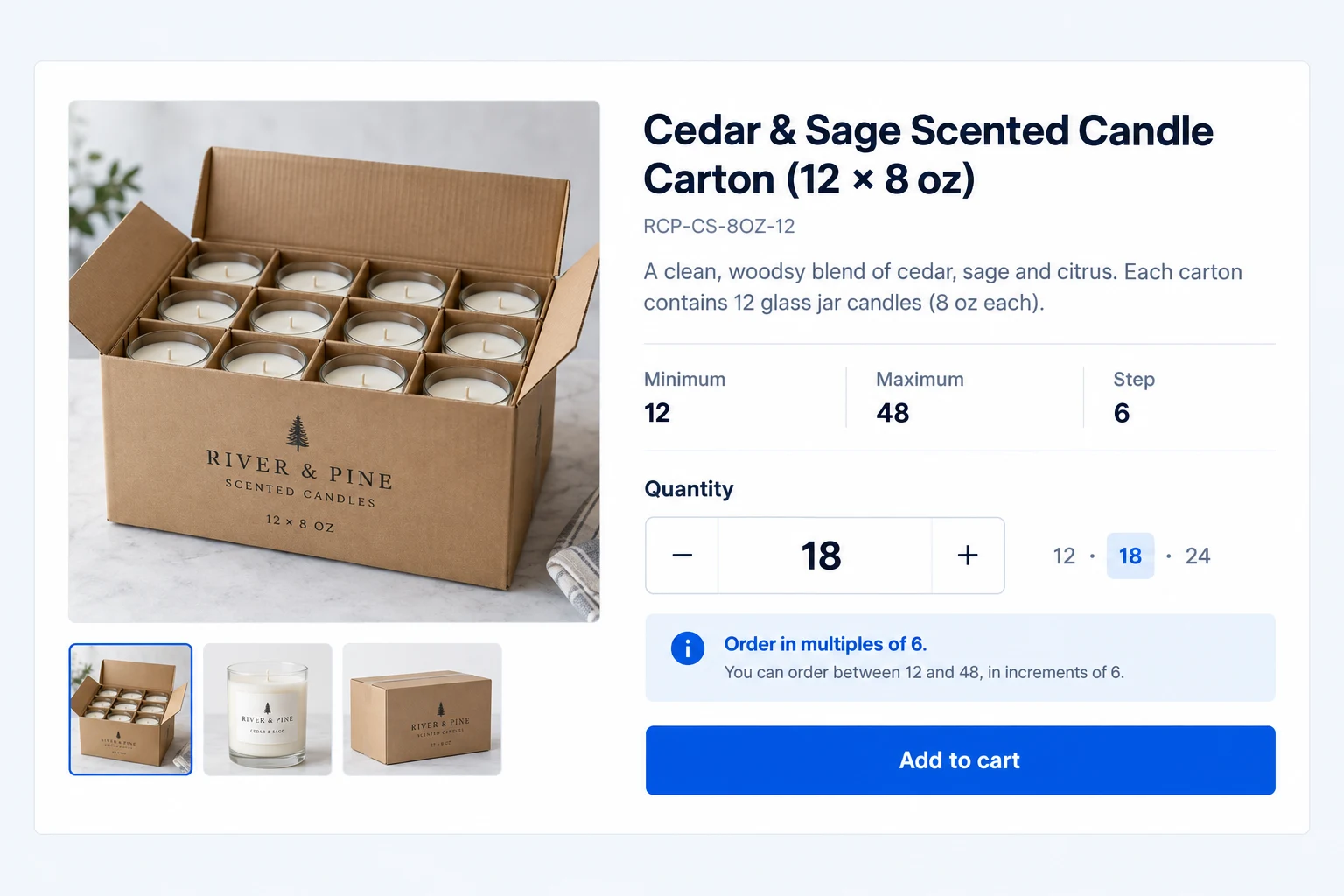
Set the exact quantity a product can be bought in.
Choose a product minimum, maximum and step. A wholesale item can start at 12 units and move in packs of six, while a limited item can stop at two.
The quantity field reflects the permitted range. Invalid quantities are checked when the shopper adds the item to cart and again when cart quantities change.
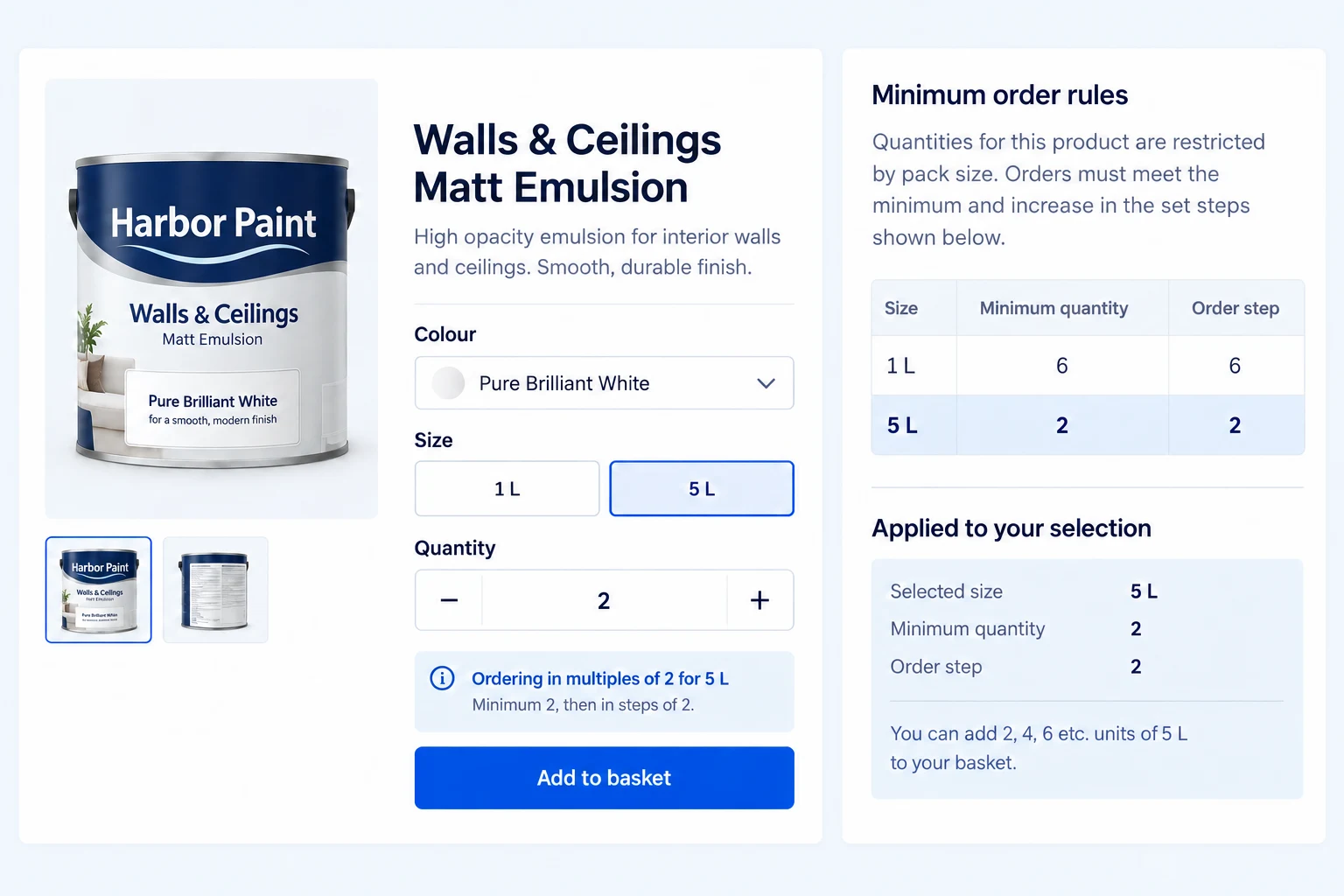
Give each variation its own limit.
For a variable product, set rules on the parent and override individual variations where needed. An empty variation field can inherit the parent rule.
A paint tin might be sold by the case in one size and individually in another. Each selected variation gets the quantity guidance that matches that SKU.
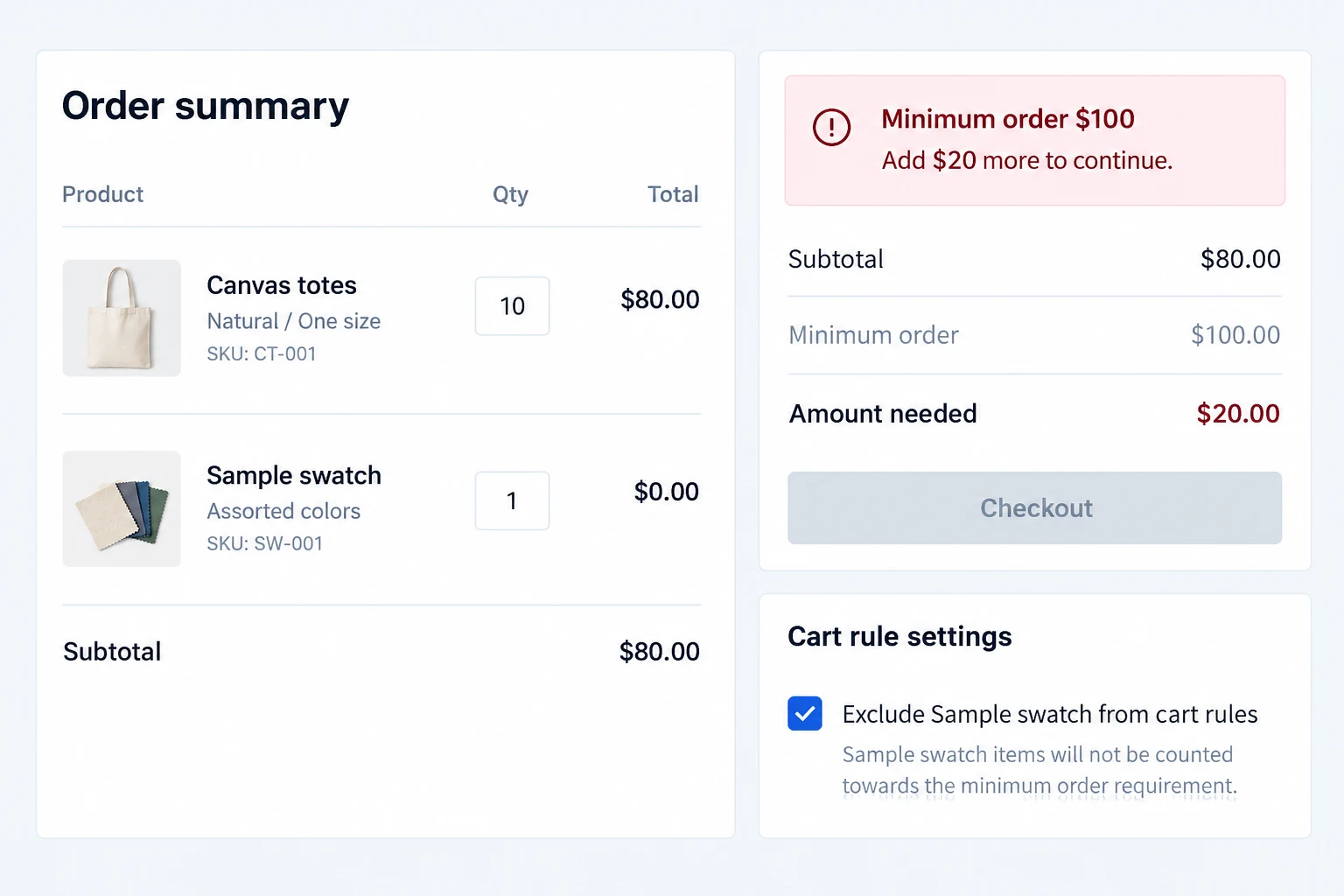
Apply minimums and maximums to the whole cart.
Pro adds cart-wide item-count and spend thresholds. Require a minimum number of units or a minimum order value, and set maximums when an order should not exceed a limit.
Choose products to exclude from those calculations, such as a free sample. Cart and checkout validation tell shoppers what still needs to change before ordering.
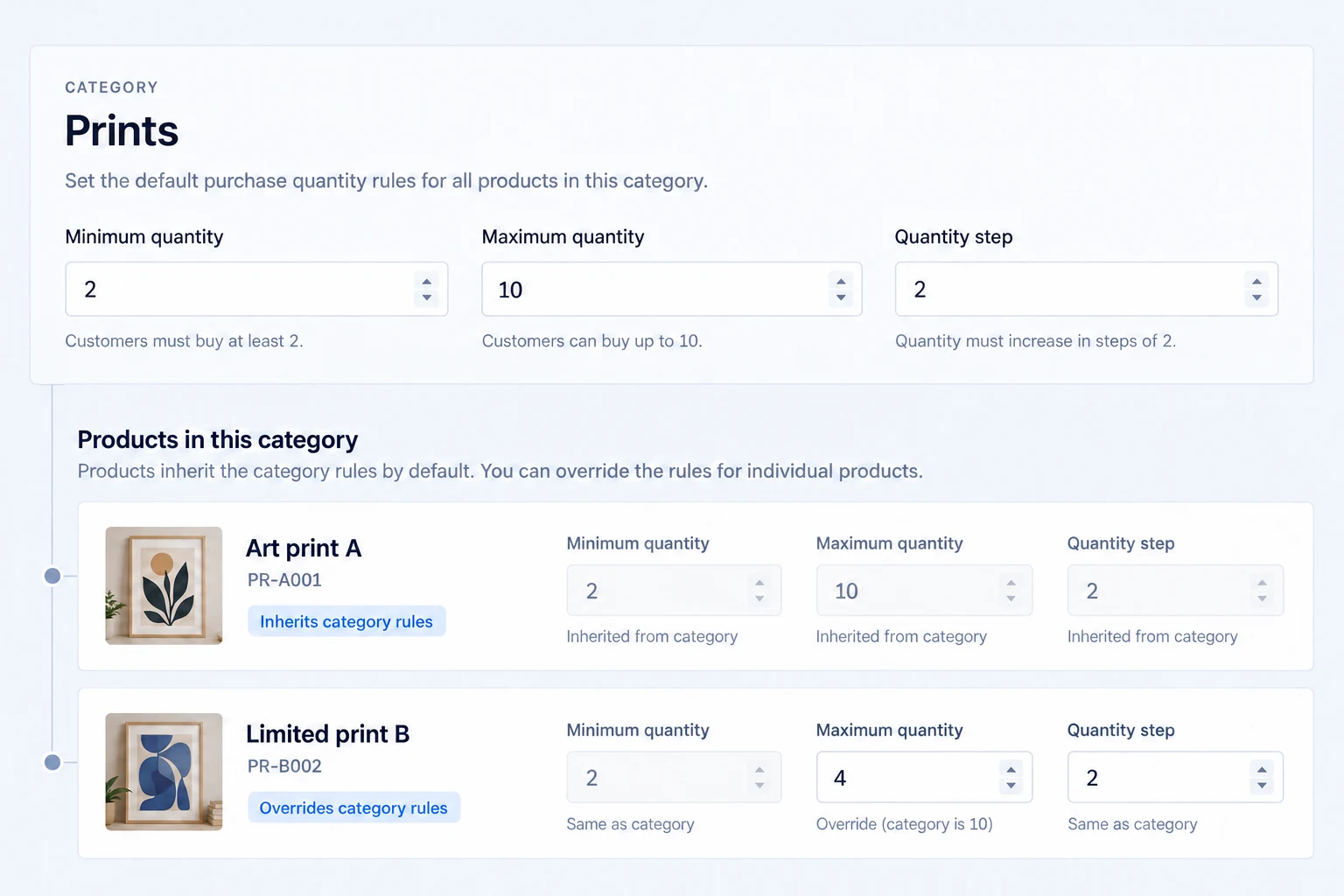
Set a rule once for a collection.
Pro applies minimum, maximum and step rules to product categories. A product or variation-specific value takes precedence where it is set; category rules fill missing values.
When more than one category rule applies, the implementation uses the strictest applicable limits. This gives a collection a useful default without erasing intentional product exceptions.
Explain a limit when the shopper can act on it.
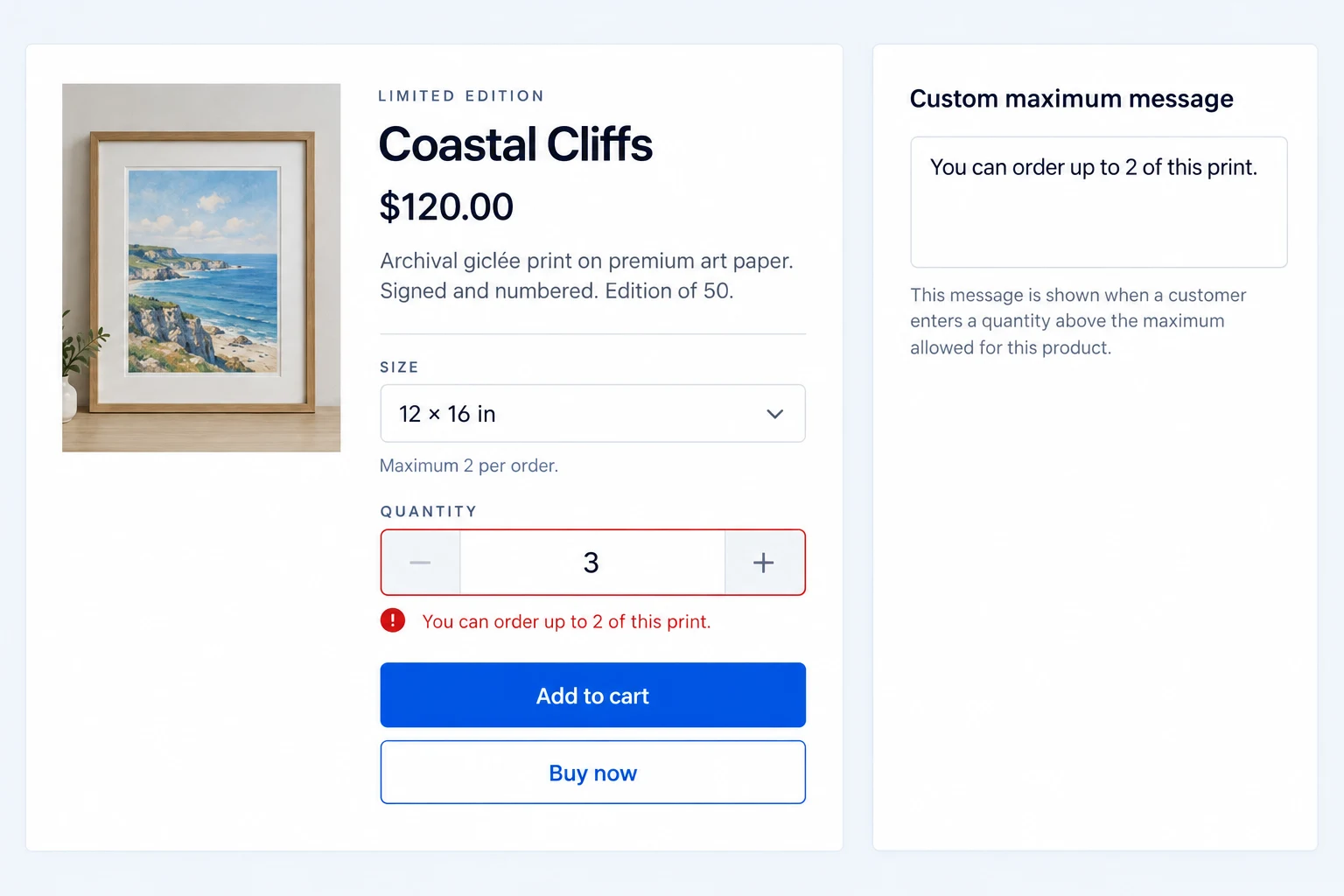
Show product-page notices for minimums, maximums and steps. Free validates add-to-cart and cart updates, so a wrong quantity is rejected rather than silently accepted.
Pro lets you customize product and cart validation messages and adds enhanced live feedback. Use the exact threshold in the message so the shopper knows how to recover.
Decide whether variation quantities count together.
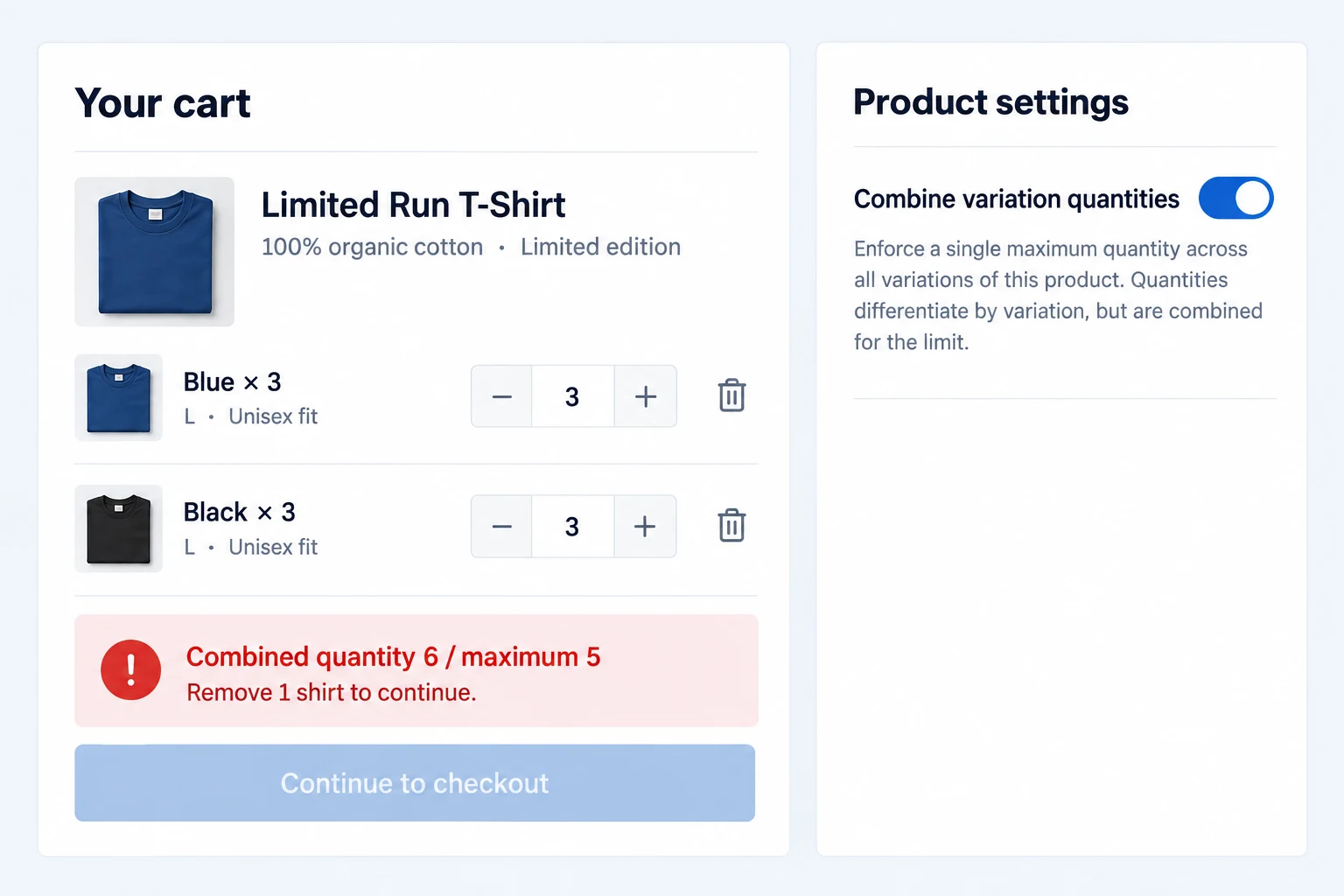
The combined-variation setting can count different variations of one product toward its parent maximum. That matters when the limit is for the product as a whole, not for each color separately.
For a limited-run shirt with a maximum of five, three blue plus three black exceeds the combined limit. Keep the rule visible so the shopper can change the cart.
Make valid quantities easier to choose.
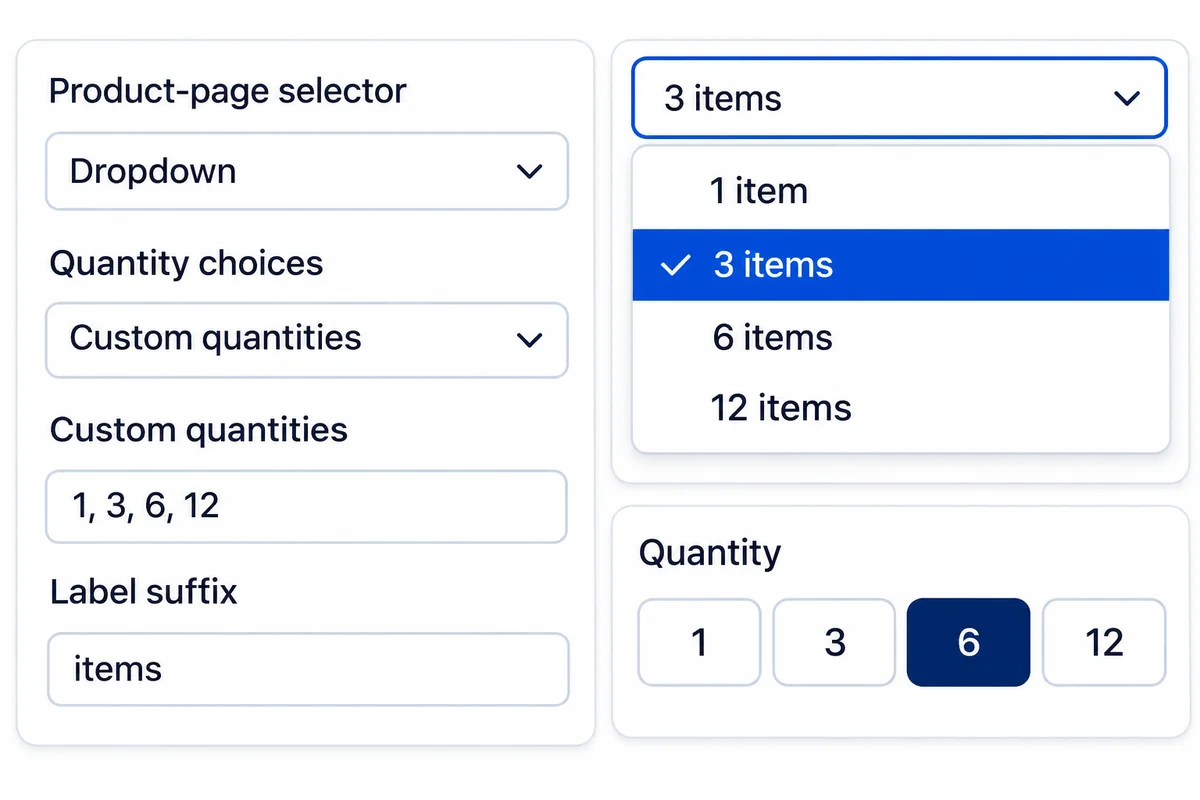
Pro turns the product-page quantity control into a dropdown or quantity buttons. Generate choices from the allowed range or provide a custom list such as 1, 3, 6 and 12.
Set shared defaults in the dashboard or override one product. Add a suffix and choose the control width. The choices still respect stock, the selected variation and applicable quantity rules. Classic product forms are supported; Cart and Checkout Blocks keep their native controls.
Give each customer role the right buying range.
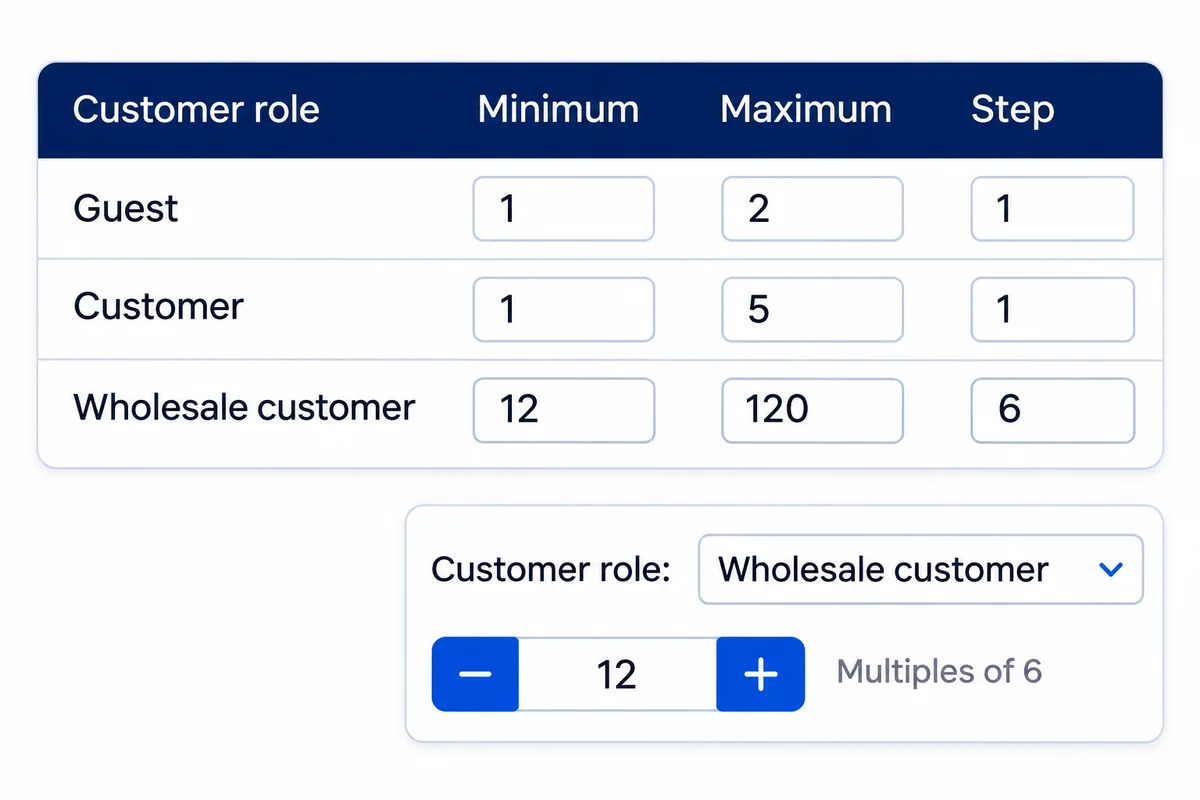
Set a different minimum, maximum and step for Guest or a WordPress customer role. A retail customer might buy one item while a wholesale customer buys in packs of six.
Blank values inherit the underlying rule. When a customer has several matching roles, the highest minimum, lowest maximum and shared step multiples apply. These per-product controls are available in Pro.
Limit repeat purchases—not just a single cart.
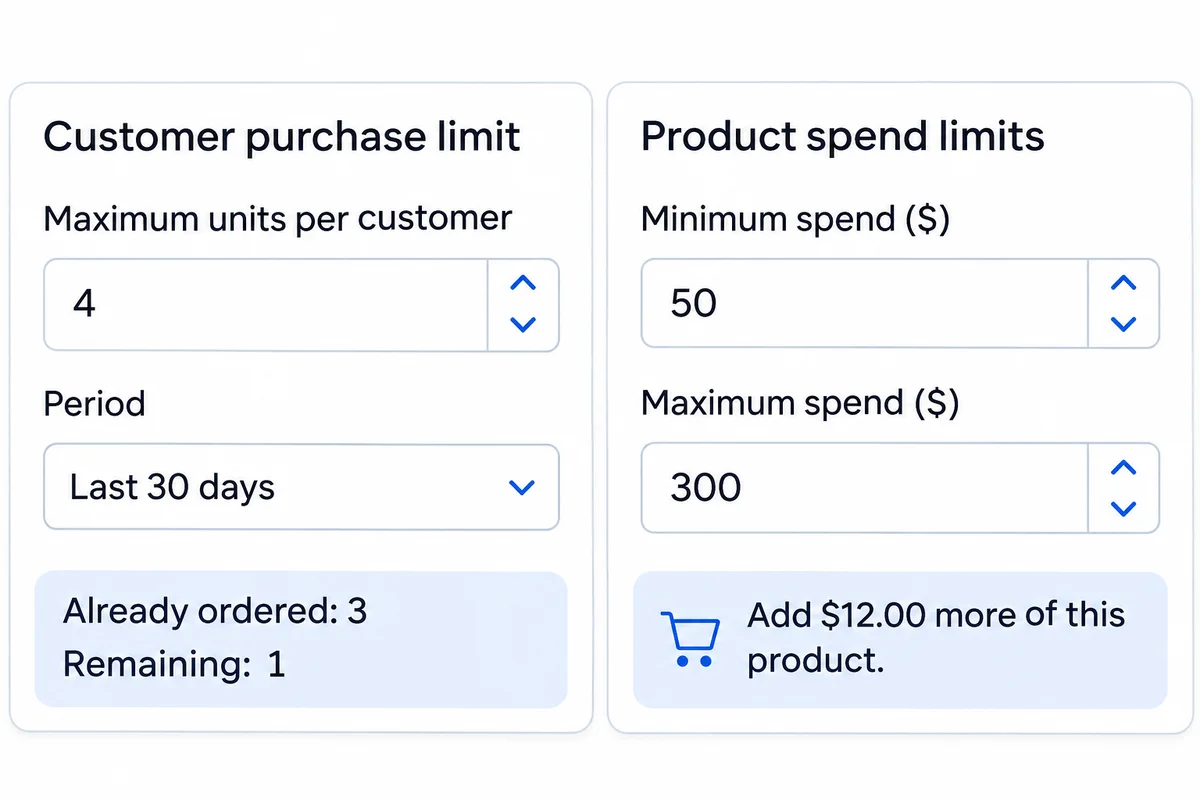
Pro can cap a logged-in customer’s units over a rolling period or their lifetime. Use Last 24 hours, Last 7 days, Last 30 days or Last 365 days for limited releases and fair access.
Also set minimum or maximum spend for an individual product. Product spend is checked after discounts and excludes tax, shipping and fees. Purchase-history limits count all variations together; they are separate from a one-order maximum.
Get the full feature.
And the rest of the suite.
One Swift Commerce Pro license unlocks the complete feature set across all 16 tools, advanced design controls and premium support. No separate purchase for Product Quantity Limits.
Compare Free and Pro.
Start with the Product Quantity Limits essentials in Free, or use Pro for the expanded controls shown below.
| What you can do | Free | Pro |
|---|---|---|
| Product minimum, maximum and step | Included | Included |
| Variation overrides and parent inheritance | Included | Included |
| Combined variation maximum | Included | Included |
| Product notices and quantity validation | Included | Included |
| Cart item-count and spend thresholds | Not included | Included |
| Products excluded from cart rules | Not included | Included |
| Category minimum, maximum and step | Not included | Included |
| Custom validation messages | Not included | Included |
| Enhanced live quantity feedback | Not included | Included |
| Quantity dropdowns, buttons and dashboard defaults | Not included | Included |
| Role-specific product minimum, maximum and step | Not included | Included |
| Customer purchase limits over a rolling period or lifetime | Not included | Included |
| Product-specific minimum and maximum spend | Not included | Included |
| Independent exclusion from category rules | Not included | Included |
Questions about Product Quantity Limits.
Specific answers about setup and Free versus Pro.
Can I sell only in packs of six?
Yes. Set a product or variation quantity step of six, with an appropriate minimum. The quantity control and validation enforce permitted multiples.
Can different sizes have different minimums?
Yes. Variation-specific minimum, maximum and step values can override the parent product rules.
Can I require a minimum cart value?
Yes, with Pro. Cart rules add minimum and maximum spend and item-count thresholds, with selected product exclusions.
What happens when a product belongs to two categories?
Pro uses the strictest applicable category limits where category fallback applies. Explicit product or variation values take precedence for fields they set.
Will the plugin automatically fix an invalid cart?
No. It constrains quantity inputs and rejects invalid add-to-cart or cart updates, with notices that tell the shopper what to change.
Are role-based limits included?
Yes, with Pro. Set a minimum, maximum and step for each WordPress role or Guest under Product data → Quantity Limits → Role-specific quantities. Leave a value blank to inherit the underlying product, variation or category rule.
Can a limit apply across several orders?
Yes, with Pro. Set Maximum units per customer and a period in Product data → Quantity Limits. Restricted products require a logged-in customer. Pending payment and On hold orders reserve allowance; cancelled, failed and refunded orders do not.
Can I exclude a product from category rules without disabling its own rules?
Yes, with Pro. Exclude from category rules is separate from Exclude from Order Rules. Product, role, customer-history and spend rules remain active when only category inheritance is excluded.
Where do I set these rules?
Edit the product and open Product data → Quantity Limits. Save with Update or Publish. The dashboard’s Product Defaults tab sets only inherited quantity-selector presentation; it does not replace product-specific purchase restrictions.