


Live product search shows matching products while a customer types. Instead of submitting a search, waiting for a new page and starting again, they can open a result directly from the search box.
This guide uses Swift Commerce Ajax Search. We will enable it, add a working search box to a page and test it against real catalog items. Basic live product search is available in Free. Pro adds controls such as additional search fields, synonyms, typo tolerance and relevance weights.
What you need
- An active WooCommerce store with Swift Commerce installed and activated.
- Several published products with descriptive names. Add images and correct prices so the results are useful.
- Access to edit a WordPress page or the template where you want the search form.
- A staging site if you are replacing an existing search integration.
Use a straightforward catalog example for testing. If you sell running shoes, have at least one published product with “running shoes” in its name. Start with a known match before testing broader terms or spelling mistakes.
1. Enable Ajax Search
- Open Swift Commerce → Products → Ajax Search.
- Turn on the feature in the header.
- Click Save Changes.
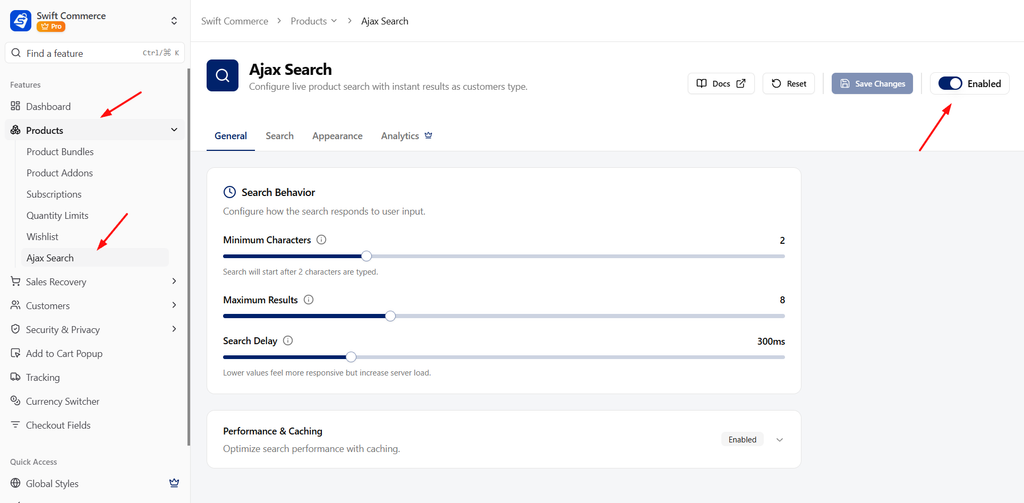
Enabling the feature and displaying its search form are separate steps. A search box built by a theme or page builder is not necessarily the Swift Commerce form.
2. Set the search behavior
Open the General tab. In Search Behavior, choose a starting configuration such as:
- Minimum Characters: 2. Search begins after the second character.
- Maximum Results: 6. This limits the dropdown, not the number of products in your catalog.
- Search Delay: 300ms. This waits briefly after typing instead of sending a request on every keystroke.
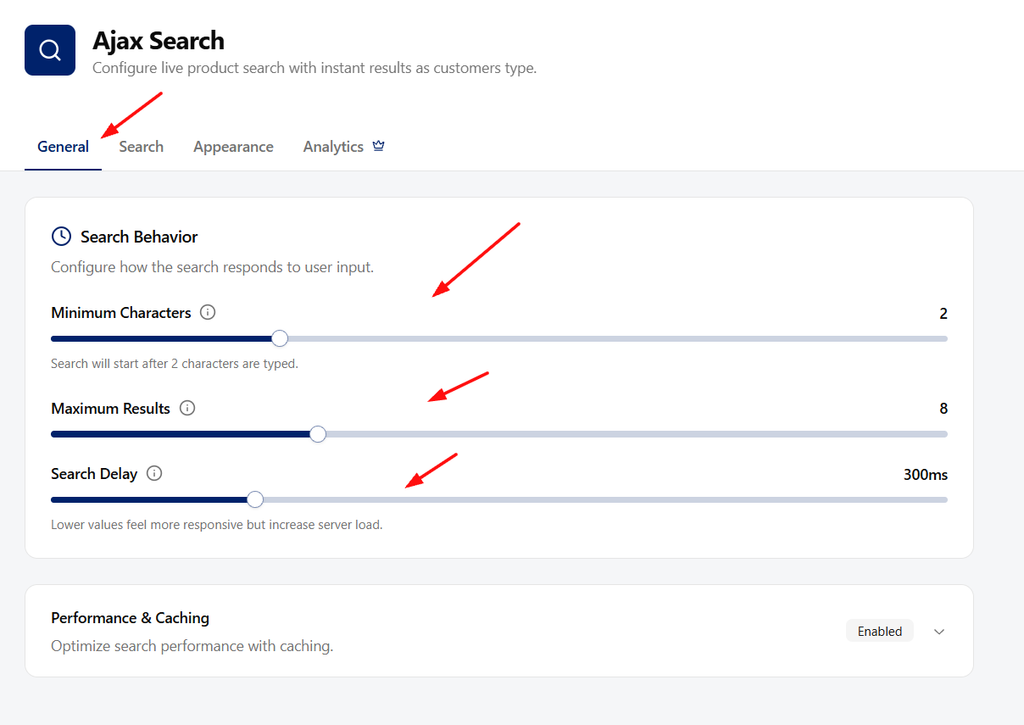
These values are suggestions, not requirements. Try them with your catalog and hosting. A one-character search can produce broad matches and extra requests; a very long delay can make the search feel unresponsive.
Under Performance & Caching, review Enable Search Cache and Cache Duration. Repeated searches can use cached results. If you are investigating a product that was just edited, account for both this cache and any page/CDN cache instead of assuming the product was never found.
Click Save Changes after choosing the behavior.
3. Add the search box to a page
The most direct way to confirm the feature is working is to place its shortcode yourself.
- In Ajax Search, open Appearance and find the Shortcode card.
- Copy the shortcode shown below.
- Open the WordPress page where you want the search box.
- Add a Shortcode block and paste it.
- Save or update the page, then open its front-end URL.
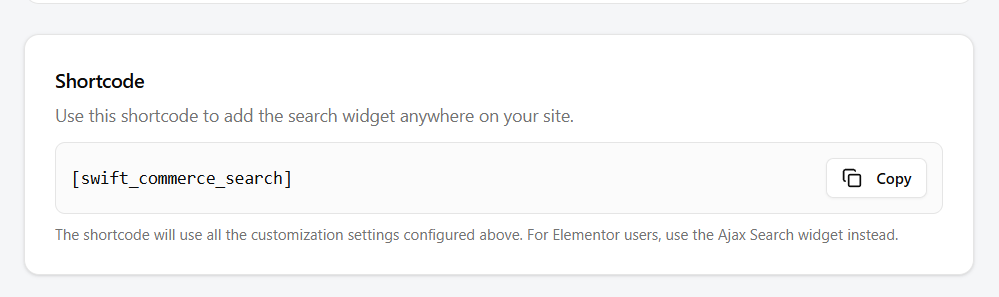
[swift_commerce_search]Use a Shortcode block rather than a Code block. A Code block displays the characters as text; it does not render the search form. In a block theme, the same approach can be used in an editable template part that supports a Shortcode block, such as a header. Check the front end after saving the template.
Swift Commerce can also replace supported WooCommerce product search forms in shop contexts. It does not automatically replace every WordPress, theme or page-builder search field. If your existing header still shows its old search, use the shortcode in a supported placement rather than adding a second search plugin.
4. Review the results and appearance
- Return to Ajax Search → Appearance.
- Choose a design preset and review the search input and results preview.
- Check that the input fits the available width and its text is readable.
- Save the settings and inspect the real page again.
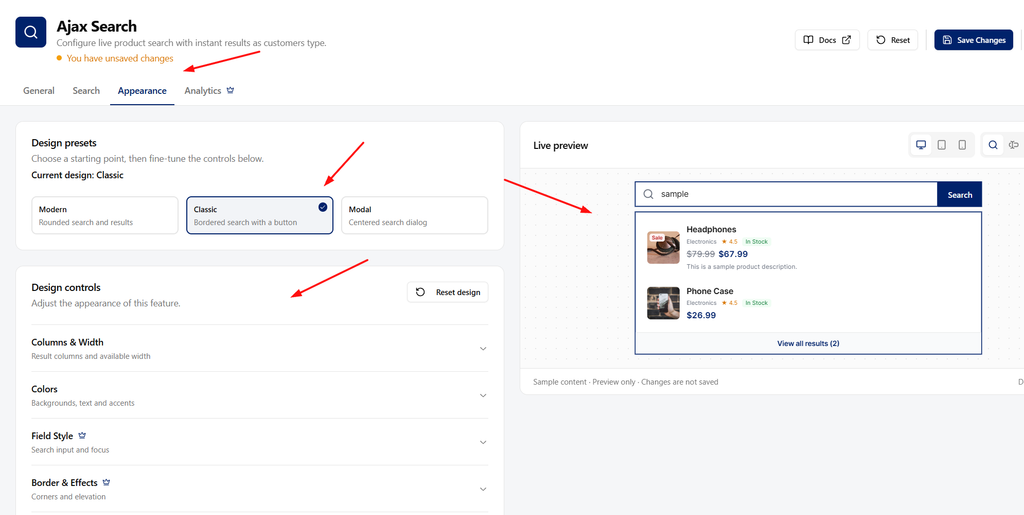
The preview uses sample content. Your storefront uses your own product names, prices and images. Advanced Product Information controls in Pro let you choose more of the details shown in results. Do not make the dropdown so busy that customers cannot identify the product.
In the Search tab, review the stock settings. Decide whether out-of-stock products should appear. A missing product may be excluded by stock or catalog visibility, even if its name matches the query.
5. Expand matching with Pro, if needed
Once basic name searches work, use the Search tab’s Pro controls for the catalog problems you actually have:
- Search Fields: include relevant fields such as SKU, descriptions, categories, tags or attributes.
- Enable Synonyms: add a group such as “sneakers” and “trainers” if customers use both terms.
- Typo Tolerance: test common small spelling mistakes rather than expecting unrelated words to match.
- Field Weights: give an important field more influence when ordering results.
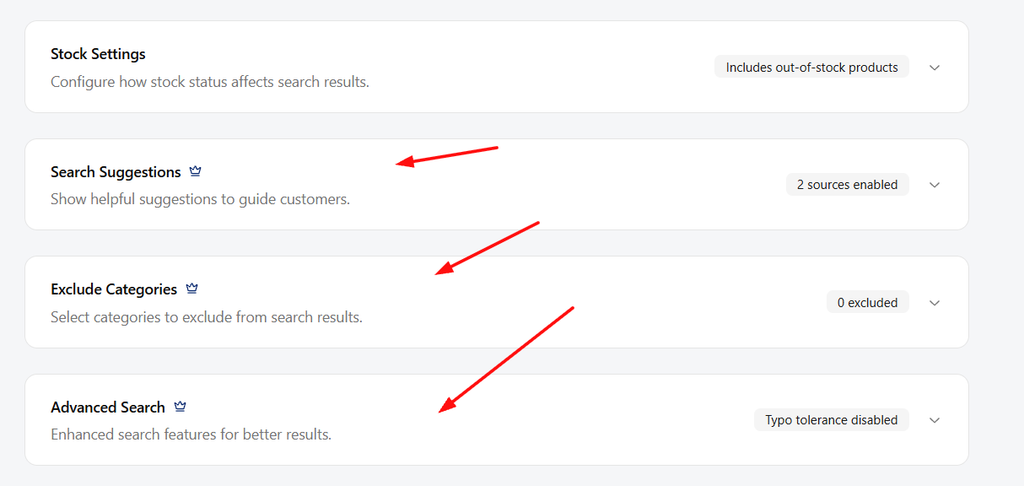
Add changes one at a time and search again. Enabling every field can make results broader without making them more useful. Only test SKU matching after enabling the SKU search field in Pro; a title-only search is not an SKU search.
6. Test the search as a customer
- Open the page in a private browser window.
- Type the beginning of a published product name and pause.
- Confirm the dropdown opens after the configured minimum characters.
- Open a result and check that it leads to the right product.
- Search for a term that should have no matches and check the empty result state.
- Repeat on a phone-sized screen and check that results remain usable without horizontal scrolling.
- If you enabled Pro matching controls, test an SKU, synonym and small typo separately.
If no results appear at all, first confirm you are using the Swift Commerce shortcode, the feature is saved as enabled and the page is not showing an old cached copy. Check the browser for blocked requests and test a published, visible, in-stock product before changing relevance rules.
Frequently asked questions
Does this search blog posts too?
This walkthrough adds product search for the WooCommerce catalog. It is not a replacement for every type of site-wide content search.
Do I need another Ajax search plugin?
No additional search plugin is required for this setup. On staging, avoid having two plugins modify the same search form so you can tell which one is producing the results.
Can I put it in my header?
Yes, when the header editing method supports the shortcode or an appropriate integration. Placement depends on your theme or builder. Test the actual saved header on desktop and mobile.
For the full settings reference, see the Ajax Search documentation.
Check the Swift Commerce listing on WordPress.org for Free installation requirements and downloads.