


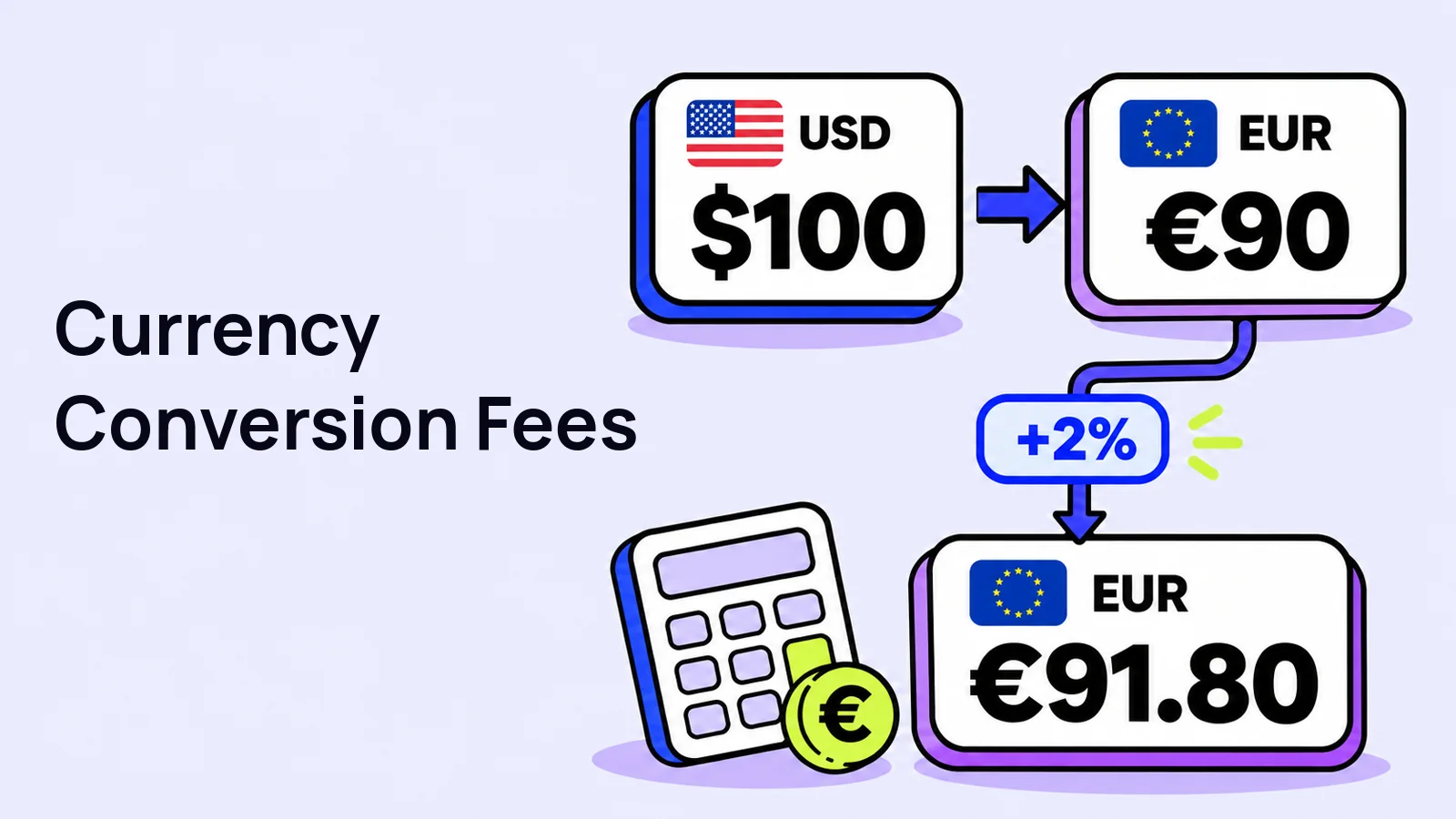
Currency conversion fees can adjust a converted WooCommerce price to account for currency-related costs or your pricing margin. This guide sets a fixed or percentage adjustment and checks rates, rounding and final product prices.
Swift Commerce Currency Switcher lets you add either a fixed amount or a percentage after conversion. We’ll set up both using the same example so you can see exactly where the fee enters the calculation.
This changes the converted price. It does not create a separate checkout fee, identify a payment gateway’s actual charge, or collect a fee once per transaction.
Before adding currency conversion fees
You’ll need WooCommerce, Swift Commerce, and Currency Switcher enabled. If you haven’t added your second currency yet, follow How to Add Multiple Currencies to a WooCommerce Store first.
Conversion-fee settings and manual currency conversion are available in Free. Pro adds product-specific currency pricing and other advanced controls. This walkthrough uses a fixed rate so you can check the fee calculation independently of external rate fetching.
1. Open the currency you want to adjust
- In Swift Commerce, open Currency Switcher.
- Choose the Currencies tab.
- Expand the row for the additional currency you want to configure.
- Find the Conversion fee settings.
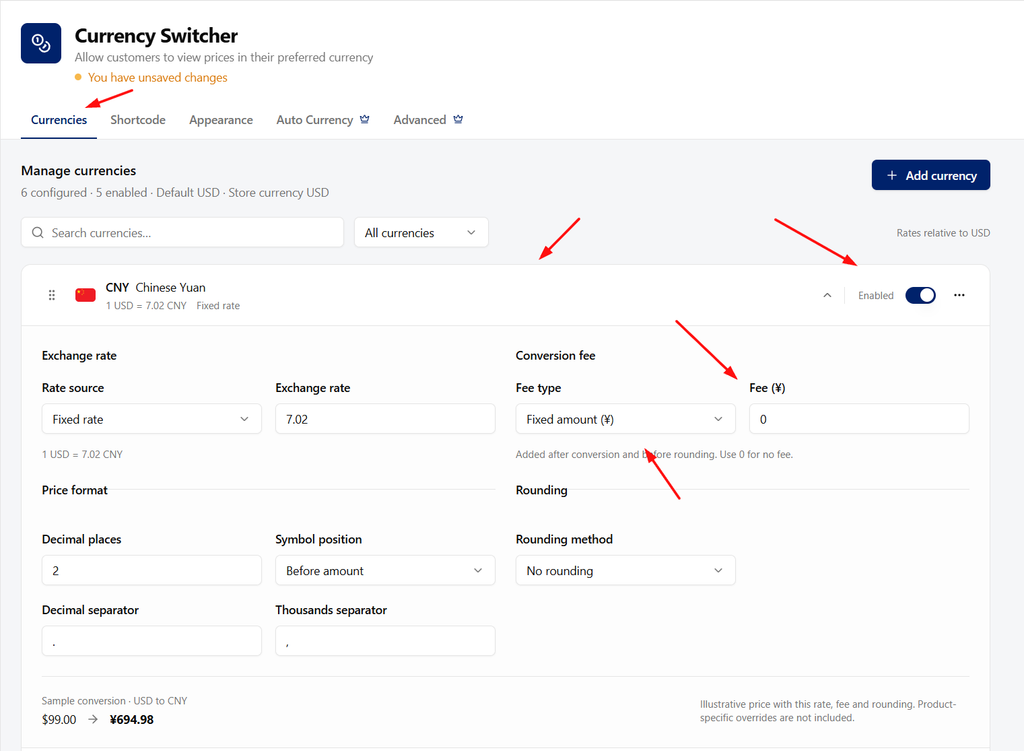
Don’t use the default currency for this example. Rates, conversion fees, and rounding do not apply to the default currency.
2. Check the exchange rate first
In Exchange rate, check Rate source and the rate itself. Use a fixed rate for this controlled test. If you fetch a rate manually, review the returned value and click Save Changes to keep it. The current release’s scheduled rate-update path needs verification before relying on unattended updates; use the current rate-update limitation and setup reference.
For our example, the store currency is USD, the target currency is EUR, and the exchange rate is 0.90. A $100 base amount therefore becomes €90 before fees and rounding. The numbers here are examples, not a current exchange-rate quotation.
Keep Rounding method at No rounding while testing the fee. Otherwise, a rounding adjustment can make it harder to see whether your fee calculation is correct.
3. Add a percentage conversion fee
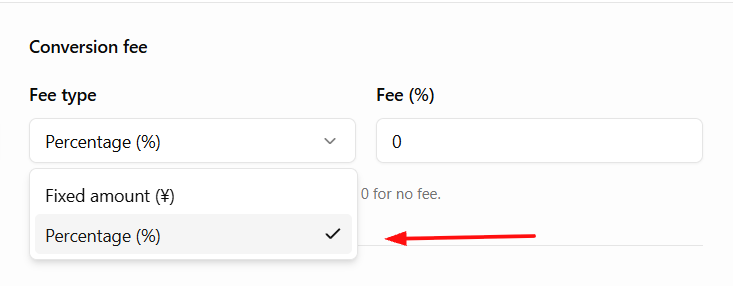
- Under Conversion fee, set Fee type to Percentage (%).
- Enter 2 in Fee (%) for a 2% adjustment.
- Review the Sample conversion below the currency settings.
- Click Save Changes in the feature header.
The percentage is applied to the converted amount, not directly to the original currency amount:
- $100 × 0.90 = €90 converted price.
- €90 × 2% = €1.80 fee.
- €90 + €1.80 = €91.80 before rounding.
The built-in sample uses its own sample starting amount, so it won’t necessarily show this $100 example. Use it to check the calculation, then verify a real product with a known base price.
4. Use a fixed amount instead
If you prefer a fixed adjustment, change Fee type to Fixed amount. The interface includes the currency symbol in the option and fee label.
- Choose the fixed-amount fee type.
- Enter 2 in the fee field.
- Save the settings and check the converted product price.
With the same $100 product and 0.90 rate, the result is €90 + €2 = €92. The fixed amount is in the target currency. It is not a $2 charge converted to euros.
| Setting | Converted amount | Fee | Result before rounding |
|---|---|---|---|
| No fee | €90 | €0 | €90 |
| 2% fee | €90 | €1.80 | €91.80 |
| €2 fixed fee | €90 | €2 | €92 |
Choose one fee type for that currency. The fixed and percentage examples above are alternatives, not two fees stacked together.
5. Apply rounding only after the fee is right
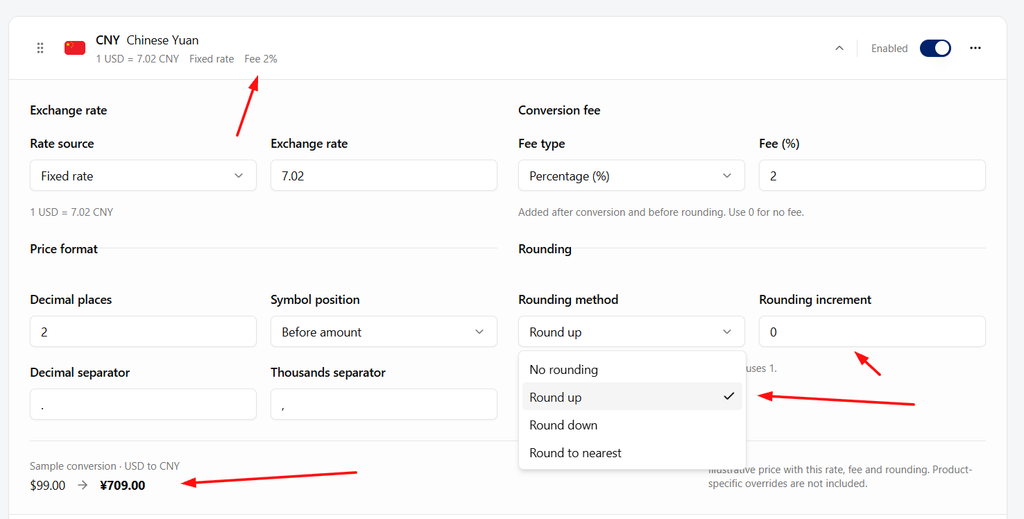
Swift Commerce converts the base price, adds the fee, and then applies rounding. If your store uses rounding, set Rounding method and the relevant increment after you’ve checked the unrounded calculation.
Review the final amount again. A small percentage adjustment can disappear into a rounding rule, or a rounded result can be higher than the fee calculation alone would suggest.
6. Check the storefront, cart, and checkout
- Open a product with a known base price and switch to the target currency.
- Confirm its converted price includes the adjustment.
- Add it to the cart and check the quantities and totals.
- Review checkout using your actual tax, shipping, and payment configuration.
- Switch back to the store currency and confirm its base price remains unchanged.
Use a product without a fixed per-currency price for this test. In Pro, a fixed target-currency product price takes precedence over normal conversion. It bypasses the exchange-rate, conversion-fee, and rounding calculation for that product price.
If a fee seems to do nothing, check those fixed-price overrides first. Also confirm you edited the selected currency, saved the feature, and cleared any stale page or currency-price cache.
When should you use a percentage or a fixed fee?
A percentage scales with the converted price, which can be useful across products at different price points. A fixed amount is predictable, but it affects a low-priced product proportionally more than an expensive one.
Neither setting guarantees that every payment-provider cost is covered. Exchange rates and provider charges can change, so review your pricing against actual costs instead of treating the fee as a permanent margin guarantee.
How do I remove the conversion fee?
Set the fee value to 0, save the settings, and test the same target currency again. Review rounding separately if you want the displayed price to match the raw converted amount.
For the rest of the currency settings, including rate sources and price formatting, use the Currency Switcher documentation.
Check the Swift Commerce listing on WordPress.org for Free installation requirements and downloads.
For the next setup task, see Currency Switcher capabilities.